Copyright © 2005 Tom Eykens
Copyright © 2000, 2001, 2002, 2003, 2004, 2005, 2006, 2007, 2008, 2009, 2010 Tom Cato Amundsen
Copyright © 2009. Piotr Komorowski (piotr-komorowski@wp.pl)
Ten dokument może być kopiowany, dystrybuowany i/lub modyfikowany wg zasad GNU General Public License, opublikowanej przez Free Software Foundation; zarówno w wersji 3, jak i późniejszej (wg wyboru). Pełny tekst licencji znajduje się tu Dodatek A, GNU General Public License version 3 .
Spis treści
- 1. Wprowadzenie
- 2. Sekcje Pomocy dla różnych ćwiczeń
- Interwały harmoniczne
- Interwały melodyczne
- Zaśpiewaj ten interwał
- Rozpoznaj akord
- Kadencje
- Odpowiedz na pytania klikając przyciski
- Pytania muzyczne wielokrotnego wyboru
- Śpiewaj akord
- Rytm
- Wystukaj rytmy
- Dyktanda
- Skale
- Intonacja
- Rozpoznaj dźwięk
- Tempo
- Śpiewaj 12 losowych dźwięków
- Nazwij interwał
- Dyktanda z progresjami harmonicznymi
- Tone in context
- 3. Teoria muzyki
- 4. Extending GNU Solfege
- Introduction
- File locations
- Lesson files
- The
chordvoicingmodule - The
compareintervalsmodule - The
dictationmodule - The
elembuildermodule - The
harmonicintervalmodule - The
idbynamemodule - The
identifybpmmodule - The
idpropertymodule - The
idtonemodule - The
melodicintervalmodule - The
nameintervalmodule - The
rhythmmodule - The
rhythmtappingmodule - The
rhythmtapping2module - The
rhythmdictationmodule - The
rhythmdictation2module - The
singanswermodule - The
singchordmodule - The
singintervalmodule - The
toneincontextmodule - The
twelvetonemodule - Writing your own modules
- The
mpdmodule - Midi instrument names
- A. GNU General Public License version 3
Spis treści
Solfege jest wolnym oprogramowaniem przeznaczonym do rozrywki. Program ten jest cześcią GNU Project. Sprawdź „Materiały dostępne w sieci”, informacje o liście mailowej, i o tym gdzie można pobrać najnowszą jego wersję.
Jedną z idei tego programu jest możliwość jego rozbudowywania, bez konieczności zaglądania do kodu źródłowego. Jeśli chcesz ćwiczyć specjalny rodzaj akordów, lub dyktand, których brakuje możesz napisać pliki lekcyjne i umieścić je w folderze lessonfiles/, w twoim katalogu macierzystym $HOME. Jeśli stworzysz naprawdę dobre lekcje, powinieneś rozważyć przesłanie ich na listę mailową , tak aby można dołączyć je do następnej wersji programu.
Raportuj błędy na adres http://bugs.solfege.org. Możesz również wysłać email na adres <bug-solfege@gnu.org>. Pytania ogólne oraz łatki należy wysyłać na adres <solfege-devel@lists.sourceforge.net>.
Proszę przygotuj swój raport w sposób szczegółowy. Informacja o tym, żę''Wyskoczył mi błąd, gdy próbowałem uruchomić program.'' nie jest dla mnie zbyt użyteczna. Gdy raportujesz błędy:
Napisz jakiej wersji Solfege'a używasz. Sprawdź proszę, czy dostępna jest nowa wersja. Jeśli chcesz po prostu korzystać ze stabilnego wydania (tzw. stable release), to nie musisz używać najnowszej wersji rozwojowej (tzw. development release).
Jakiego systemu operacyjnego używasz? W jakiej wersji?
Opisz dokładnie co robisz, gdy pojawia się błąd.
Przyślij dokładną kopie wiadomości o błędzie. Mają one sens dla autora Solfege'a, nawet jeśli wydają ci się enigmatyczne.
Strona domowa Solfege'a to http://www.solfege.org. Istnieje również mniejsza strona z bardziej statycznym info na http://www.gnu.org/software/solfege/.
Kod źródłowy jest dostępny z http://ftp.gnu.org/gnu/solfege. Jeśli lubisz przygody możesz spróbować wydania niestabilnego (tzn. zawierającego potencjalne błędy, lecz także nowe opcje) zamieszczanego na http://alpha.gnu.org/gnu/solfege. Wydania te mogą mieć więcej błędów, ale w zamian masz szansę próbowania nowych rzeczy i raportowania błędów.
Kod źródłowy oraz pliki wykonywalne dostępne są na http://sourceforge.net/project/showfiles.php?group_id=1465.
Jeśli używasz Debiana (lub innej dystrybucji opartej na nim), możesz wydać polecenie apt-get install solfege, aby pobrać i zainstalować program.
Niewielki ruch, moderowana i będzie używana do ogłaszania stabilnych wydań Solfege'a. (Subscription | Archive)
Jeśli chcesz zgłaszać problemy przy instalacji, czy użytkowaniu Solfege'a, lub jeśli masz pytania, komentarze, pomysły na to jak go ulepszyć, proszę używaj tej listy zamiast pisać na forum, czy zwracać się bezpośrednio do autora. Wiadomości do solfege-devel możesz wysyłać bez subskrypcji. (Subscription | Archive)
Standardowy adres GNU do raportowania błędów. Lista ta jest obecnie przeniesiona na <solfege-devel@lists.sourceforge.net>
Selecting exercises works like navigating a web page and clicking on links. Press Alt+Left to move to the previous page or F5 to move to the front page.
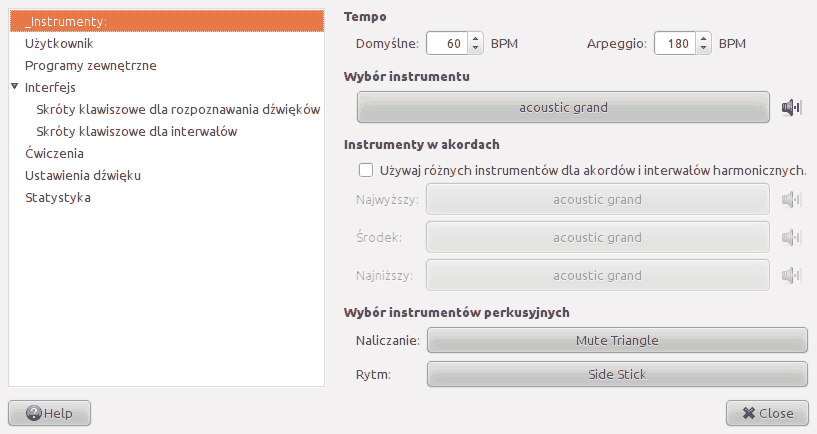
Ustal tempo (w uderzeniach na minutę) dla muzyki i arpeggia. Wartości te są używane przez ćwiczenia napisane przy użyciu następujących modułów: compareintervals, harmonicintervals, idtone, melodicinterval, singchord, singinterval, twelvetone, rhythm, identifybpm, nameinterval. Inne ćwiczenia mają tempa ustalone w odpowiednich plikach lekcyjnych, lub na stronach konfiguracyjnych tych ćwiczeń.
Solfege może podczas grania akordów używać trzech różnych instrumentów: jednego dla najwyższego, jednego dla dźwięków środkowych i jednego dla dźwięku najniższego. Może być to pomocne, gdy wysłyszenie poszczególnych dźwięków w akordzie sprawia trudności.
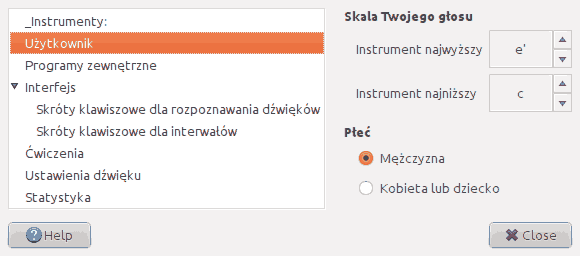
Solfege używa tych informacji w niektórych ćwiczeniach, które wymagają śpiewania.
Te ruchome przyciski wskazują Solfege'owi najwyższy i najniższy dźwięk jaki użytkownik może zaśpiewać. Wartości te są przez program traktowane jako wskazówki. Jeśli więc np. wartości są ustalone jako c do c', a skonfigurowałeś program tak, aby wymagał od Ciebie śpiewania wielkich i małych decym, będziesz musiał śpiewać dźwięki spoza tej skali.
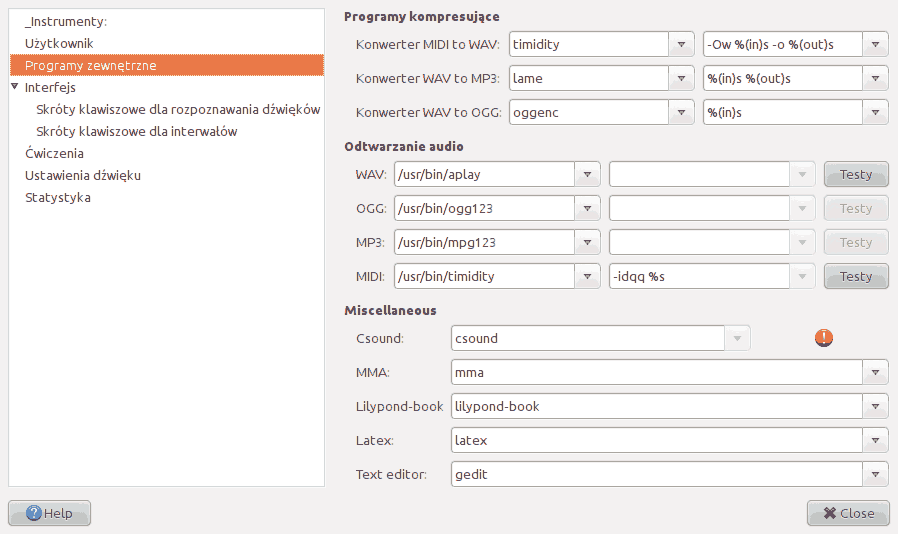
Solfege poszuka ścieżki w zmiennej PATH do programów ustalonych na tej stronie. Dlatego musisz zapisać pełną ścieżkę do danego programu, a nie tylko jego nazwę, tylko wtedy gdy jest on zainstalowany poza zmienną środowiskową PATH. Znak wykrzyknika oznacza, że program nie został znaleziony.
W przypadku systemu MS Windows, proszę sprawdzić stronę pod adresemwww.solfege.org, aby uzyskać najnowsze porady oraz odnośniki do potrzebnych programów.
Podaj komendę wiersza poleceń dla konwersji pomiędzy różnymi formatami audio.%(in)s zostanie zamienione na nazwę pliku z którego konwertujemy, a %(out)s na nazwę pliku, do którego konwertujemy. Nie jest konieczne wprowadzanie %(out)s, jeśli program automatycznie zapisuje nowe pliki z poprawnym rozszerzeniem.
Komendy wiersza poleceń, która umożliwiają odtwarzanie różnych formatów audio. %s zostanie zastąpione przez nazwę odgrywanego pliku. Nazwa ta zostanie dołączona na końcu ciągu znaków, jeśli nie dołączysz %s.
Niektóre ćwiczenia wykorzystują programy CSound i MMA. Lilypond-book jest potrzebny do drukowania testów słuchowych, a LaTeX do tego gdy testy te mają być utworzone w formacie dvi. Bez LaTeXa nadal możesz tworzyć te pliki w formacie html.
Jeśli zapisane tu pliki kończą się na .py to skrypt ten będzie uruchomiony przez ten sam interpretator Pythona co sam Solfege.
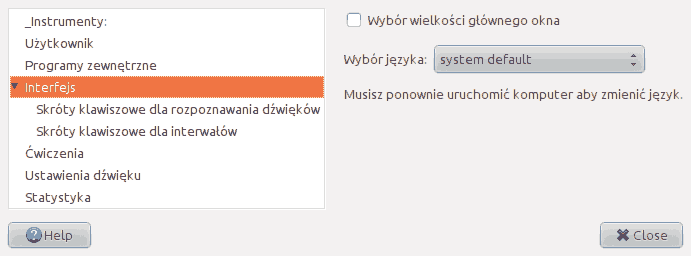
Wybór wielkości głównego okna: pozwala użytkownikowi skalować wielkość głównego okna Solfege'a.
Wybór języka: możesz samemu ustalić język, jeśli Solfege nie wykrył go poprawnie, lub jeśli chcesz uruchomić Solfege w innym języku, niż język Twojego systemu operacyjnego.
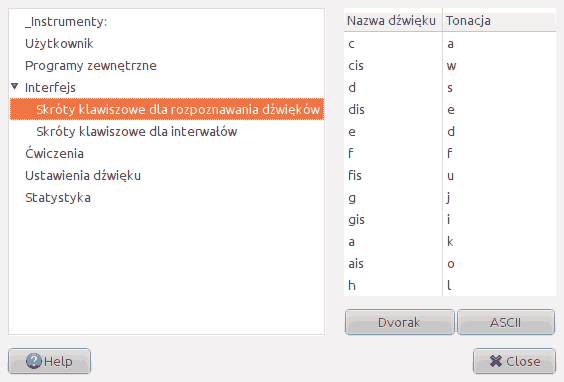
Tutaj możesz zmienić skróty klawiszowe dla ćwiczenia "Rozpoznaj dźwięki". Najpierw kliknij w pierwszej kolumnie dźwięk, dla którego chcesz zmienić skrót, następnie zaś w drugiej kolumnie tego samego rzędu, wpisz symbol klawisza, którego chcesz używać.
Przyciski «Dvorak» i «ASCII» służą do przypisania odpowiednich skrótów do wartości zgodnych z klawiaturami typu Dvorak lub ASCII.
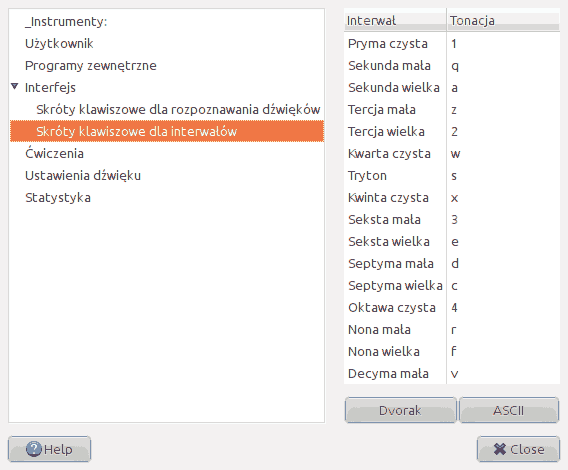
Tutaj możesz zmienić skróty klawiszowe dla ćwiczeń interwałowych, tj. "Interwały harmoniczne", czy "Interwały melodyczne". Najpierw kliknij w pierwszej kolumnie na interwał, dla którego chcesz zmienić skrót, następnie w drugiej kolumnie tego samego rzędu wpisz symbol klawisza, którego chcesz używać.
Przyciski «Dvorak» i «ASCII» służą do przypisania odpowiednich skrótów do wartości zgodnych z klawiaturami typu Dvorak lub ASCII.
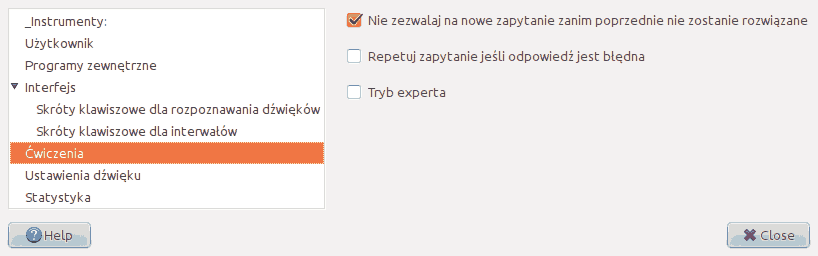
Nie zezwalaj na nowe zapytanie, jeśli poprzednie nie zostanie rozwiązane: blokuje przycisk 'Nowy' do momentu udzielenia poprawnej odpowiedzi, lub kliknięcia przycisku "poddaję się".
Repetuj zapytanie jeśli odpowiedź była błędna: powoduje ponowne odtworzenie pytania jeśli udzielona odpowiedź nie była poprawna.
Tryb eksperta: wybranie tej opcji w ćwiczeniach używających modułów idbyname i idproperty, pozwoli Ci na wybranie tylko części pytań z pliku lekcyjnego. Ćwiczenia w trybie eksperta nie zapisują żadnych danych statystycznych.
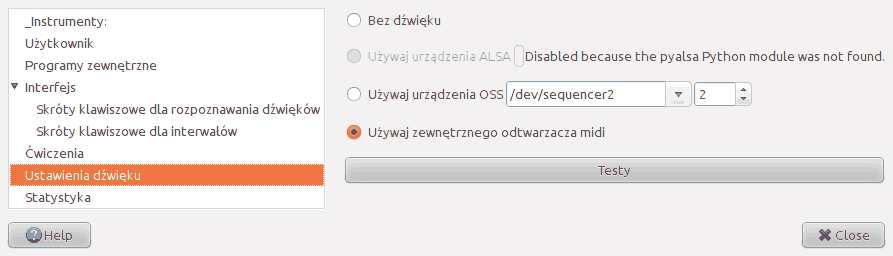
Ćwiczenia generujące dźwięki mogą je wytwarzać na trzy sposoby:
- Bez dźwięku:
Użyj tego dla poszukiwania błędów programu lub podczas portowania Solfege'a. Dźwięki nie są grane, zamiast tego zdarzenia midi są wyświetlane na standardowym wyjściu (stdout).
- Użyj urządzenia ALSA
If you have the Python modules for ALSA installed, you can use the ALSA sequencer. If your operating system is GNU/Linux, you have a menu item on the Help menu that can download and compile the modules for you.
- Używaj urządzenia:
Najlepszym wyborem tutaj jest zwykle
/dev/music, ponieważ najlepiej obsługuje instrumenty perkusyjne./dev/sequencer2jest z reguły dowiązaniem symbolicznym do/dev/music.Jeśli Twój system nie posiada/dev/musicmożesz je utworzyć tym poleceniem, wydanym z konta superużytkownika (jeśli używasz jądra Linuksa w wersji 2.2 lub późniejszej):cd /dev mknod music u 14 8
W systemie operacyjnym MS Windows pole to jest oznaczone jako
Windows multimedia output.- Używaj zewnętrznego odtwarzacza midi:
Opcja ta może być użyteczna przy portowaniu do systemów, które nie używają OSS, lub jeśli masz słaby syntezator midi w karcie dźwiękowej i zamiast niego wolisz użyć timidity.
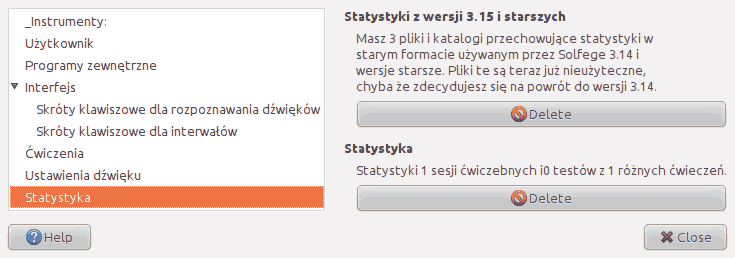
Wersje Solfege'a o numerze niższym niż 3.16.0 zapisywały statystyki w wielu małych plikach. Solfege 3.16.0 oraz jego nowsze wersje bedą importować te pliki do nowego pliku bazy danych w momencie pierwszego uruchomienia, lecz pozostawią stare pliki niezmienione na twoim komputerze. Można bezpiecznie usunąć te pliki po pierwszym uruchomieniu Solfege'a 3.16.0 lub nowszego. Pliki te są zapisywane w katalogu statysyki, znajdującym się w katalogu z danymi aplikacji.
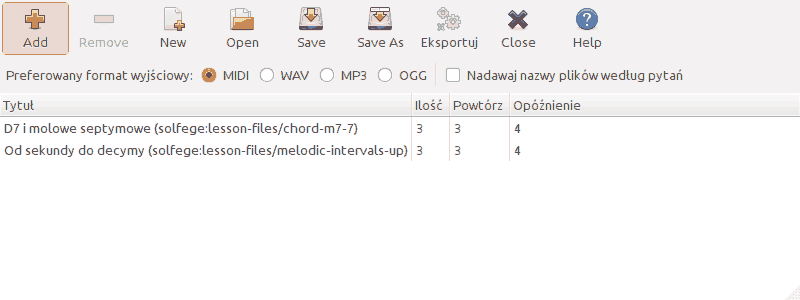
The training set editor lets you create MIDI/WAV/MP3/OGG files of questions so that you can upload them to your pda, cell phone or MP3 player. A solution sheet will be generated for you to print out. Then you can let the MP3 player play the tracks in random order, and you can use the solution sheet to check if you recognized the music correctly.
Możesz użyć edytora treningu do zdefiniowania generowanych ćwiczeń. Możesz zachować swoje ustawienia w pliku, aby móc z nich skorzystać później. Za każdym razem, gdy klikniej przycisk zestaw ćwiczeń zostanie wygenerowany i umieszczony w katalogu, który wybierzesz nowy zestaw plików. Pliki te należy potem ręcznie przenieść do swojego przenośnego urządzenia.
Program umożliwia generowanie pytań z dowolnej liczby lekcji, choć najczęściej wykorzystuje się go do tworzenia wielu pytań z jednej, lub kilku zaledwie lekcji.
Programy używane do konwertowania pomiędzy różnymi formatami są definiowane w oknie ustawień . Jeśli masz problemy z konwertowaniem plików MIDI do formatu WAV, MP3, czy OGG, powinieneś sprawdzić te ustawienia.
Objaśnienie nagłówków tabeli
- Ilość
Liczba pytań do utworzenia z danej lekcji.
- Powtórz
Ilość powtórzeń każdego pytania.
- Opóźnienie
Jak duże opóźnienie ma być między pytaniami. Liczone w ćwierćnutach.
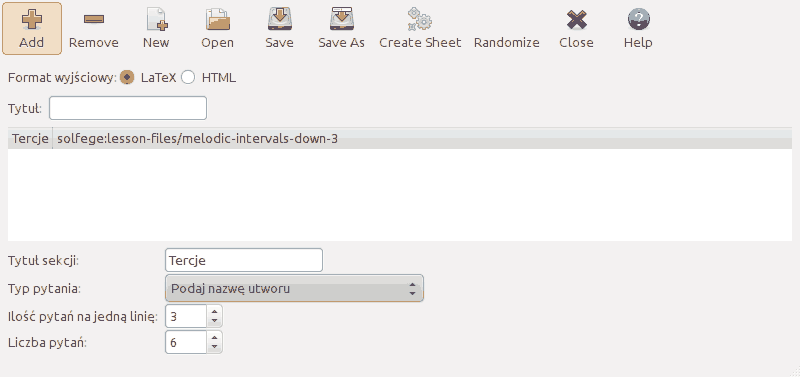
Narzędzie to dostępne jest w menu . Użyj go do tworzenia wydruku testów słuchowych na papierze. Solfege wygeneruje dwie wersje tego dokumentu: jeden do wypełnienia dla uczniów i drugi z wpisanymi poprawnymi odpowiedziami.
Pod przyciskiem znajduje się rozwijane menu zawierające wszystkie ćwiczenia dostępne w aktywnym schemacie lekcyjnym. Przy zapisie ćwiczenie wykorzysuje moduły idbyname, melodicinterval i harmonicinterval. Z plików lekcyjnych zapisanych do modułu idbyname, dostępne są tylko następujące objekty muzyczne: chord, rvoice i voice.
otworzy okno dialogowe, w którym będziesz mógł wybrać lub stworzyć pusty katalog, w którym zostaną zapisane pliki HTML, LaTex i pliki graficzne.
Jeśli zapiszesz i wczytasz pliki z testami słuchowymi, program zapamięta kolejność pytań. Wczytanie pliku i kliknięcie przycisku utworzy dokładnie taki sam test. Kliknij , aby stworzyć nowy losowy zestaw pytań.
Niektóre ćwiczenia pokazują statystkę dla różnych okresów czasowych: Sesja, Dzisiaj, Ostatnich 7 dni i Ogółem. Program używa dwóch różnych rodzajów tabel.
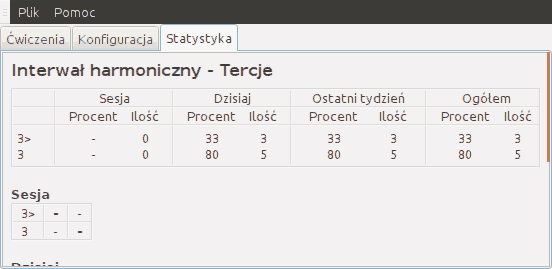
Pierwsza z tabel, jak pokazuje to powyższy zrzut ekranu, ma jeden rząd dla każdego pytania z pliku lekcyjnego. Procent pokazuje ile razy udzielono poprawnej odpowiedzi. Ilość pokazuje ile razy zadano dane pytanie.
W tabeli drugiego typu kolumny mają takie same etykiety dla rzędów, ale etykiety te nie są wyświetlane ponieważ spowodowałoby to, że tabele byłyby zbyt szerokie. Tak więc na powyższym obrazku kolumna 1 powinna mieć etykietę 3m↑ a kolumna 2 3w↑. Dla pytań oznaczonych etykietami rzędów w kolumnach pokazano ile razy użytkownik udzielił różnych możliwych odpowiedzi. Poprawne odpowiedzi oznaczone są pogrubioną liczbą.
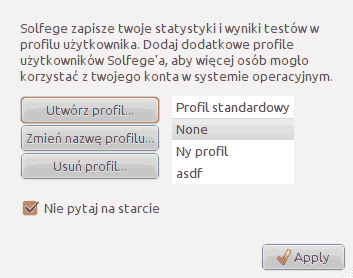
Menedżer profilów umożliwia korzystanie z Solfege'a wielu użytkowników, korzystającym z tego samego konta w systemie operacyjnym. Profile mają ten sam plik konfiguracyjny, ale oddzielne statystyki i wyniki testów.
Menedżer profilów pojawi się przy uruchamianiu programu, jeśli utworzono więcej niż jeden profil. Menedżer można również uruchomić wybierając z .
Zaznacz Nie pytaj przy starcie jeśli nie chcesz, aby menedżer profilów uruchamiał się przy starcie programu. Zapamięta on wtedy ostatnio wybrany profil i uruchomi program z tym właśnie profilem.
Spis treści
- Interwały harmoniczne
- Interwały melodyczne
- Zaśpiewaj ten interwał
- Rozpoznaj akord
- Kadencje
- Odpowiedz na pytania klikając przyciski
- Pytania muzyczne wielokrotnego wyboru
- Śpiewaj akord
- Rytm
- Wystukaj rytmy
- Dyktanda
- Skale
- Intonacja
- Rozpoznaj dźwięk
- Tempo
- Śpiewaj 12 losowych dźwięków
- Nazwij interwał
- Dyktanda z progresjami harmonicznymi
- Tone in context
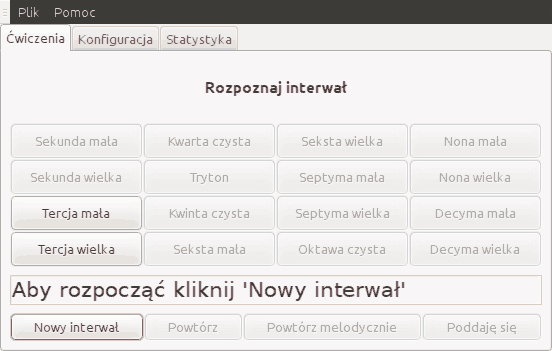
Jest to jedno z zadań przydatnych w ćwiczeniu interwałów. Jego pomysł jest bardzo prosty: naciskasz przycisk , aby usłyszeć przypadkowo wybrany interwał, a następnie określasz co usłyszałeś.
Jeśli używasz interfejsu z przyciskami możesz kliknąć na nie prawym przyciskiem myszy, by usłyszeć jak brzmi dany interwał.
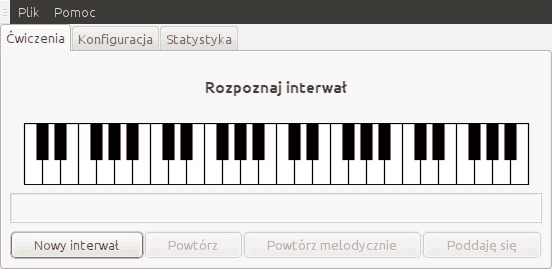
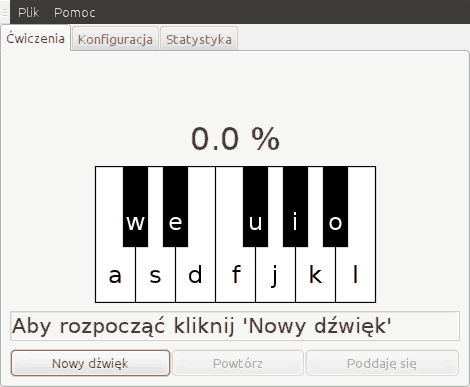
Na zakładce konfiguracji ćwiczeń znajduje się rozwijana lista, na której możesz wybrać różne sposoby odpowiedzi na pytania. Obecnie oprócz interfejsu z przyciskami do wyboru jest także klawiatura fortepianu, gitara, gitara basowa oraz kilka odmian akordeonu. Poniżej znajduje się zrzut ekranu pokazujący interfejs z fortepianem.
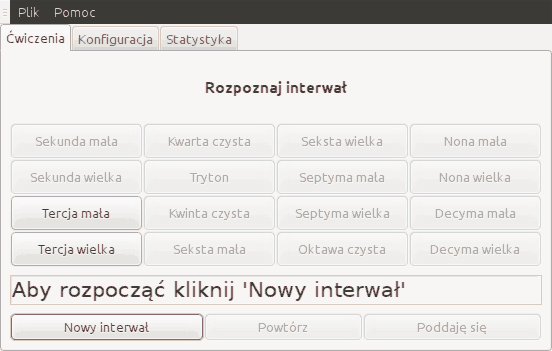
Ćwiczenie to odtwarza przypadkowe interwały, a Ty musisz je rozpoznać.
Jeśli używasz interfejsu z przyciskami możesz kliknąć na nie prawym przyciskiem myszy, by usłyszeć jak brzmi dany interwał.
Na zakładce konfiguracji ćwiczeń znajduje się rozwijana lista, na której możesz wybrać różne sposoby odpowiedzi na pytania. Obecnie oprócz interfejsu z przyciskami do wyboru jest także klawiatura fortepianu, gitara, gitara basowa oraz kilka odmian akordeonu. Poniżej znajduje się zrzut ekranu pokazujący interfejs z fortepianem.
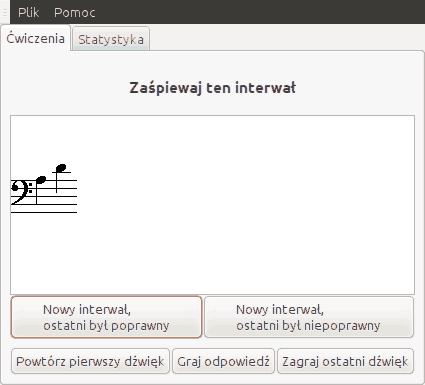
W tym ćwiczeniu Solfege wyświetli jeden, lub więcej interwałów, a Ty powinieneś/aś je zaśpiewać. Obecnie nie jest jeszcze niestety możliwe, by Solfege oceniał poprawność intonacyjną zaśpiewanych do mikrofonu dźwięków, więc na razie musisz tego dokonać sam/a.
Program spróbuje stworzyć pytanie, w którym wszystkie dźwięki będą mieścić się w skali użytkownika, tak jak jest to skonfigurowane w oknie ustawień. Niekiedy nie jest możliwe utrzymanie pytania w tej skali, np. gdy pytanie jest tak skonstruowane, aby wiele interwałów postępowało w tym samym kierunku.
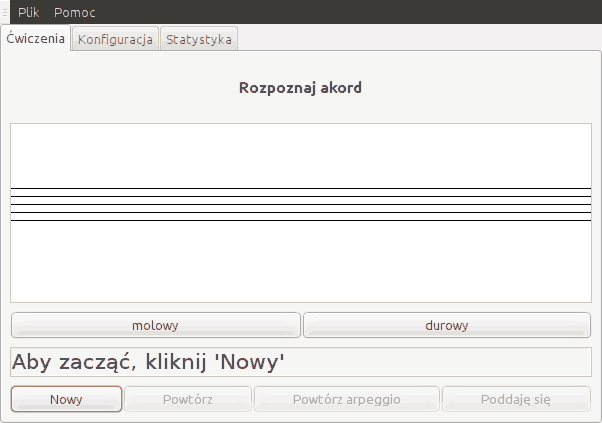
Celem tego ćwiczenia jest rozpoznawanie zagranych akordów.
Rozpocznij ćwiczenie wciskając . Solfege zagra akord, a Ty musisz go rozpoznać i kliknąć jeden z przycisków umiszczonych poniżej pustej pięciolinii.
Jeśli odpowiedź była poprawna, program wyświetli akord na pięciolinii i pokaże informacje "Poprawnie" na pasku statusu. Możesz wtedy ponownie kliknąć przycisk , aby odpowiedzieć na nowe pytanie.
Jeśli odpowiedź była błędna na pasku statusu pojawi się informacja "Niepoprawnie".
Rozpoznaj kadencję klikając na przycisk z jej nazwą. Jak wiadomo z bug #5 w Solfege potrzebne są ćwiczenia z kadencjami.
W tym wydaniu Solfege'a mamy tylko jedno ćwiczenie z kadencjami w majorze.W ćwiczeniu tym na początku grana jest gama majorowa po to, aby utwierdzić tonikę. Być może jest to za mało? Może lepsza byłaby kompletna triada I-IV-V-I, grana przed pytaniem? Albo lepszy będzie fragment żywej muzyki, zakończony kadencją? Zagadnienia te należy rozważyć przed ogłoszeniem wersji 3.12.0. Komentarze i muzyka może być dodawana na bug #5.
Ta strona zawiera jest jedynie ogólną pomocą dla wszystkich ćwiczeń napisanych przy użyciu modułu ćwiczeń idbyname. One same będą z reguły podawać bardziej wyspecjalizowany tekst pomocy niż ten znajdujący się tutaj.
Kliknij na przycisk zawierający odpowiedź na zadane pytanie. Ćwiczenia często posiadają tytuł wyjaśniający ich zastosowanie i cel.
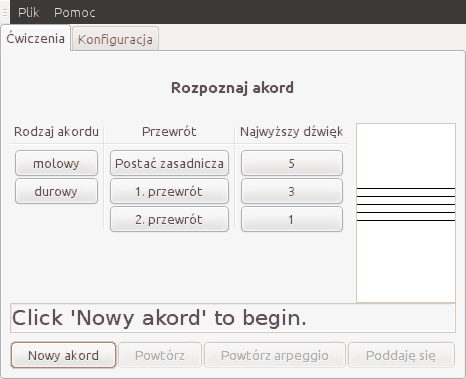
Ta strona zawiera jest jedynie ogólną pomocą dla wszystkich ćwiczeń napisanych przy użyciu modułu ćwiczeń idproperty.One same będą z reguły podawać bardziej wyspecjalizowany tekst pomocy niż ten.
Powyższy zrzut ekranu pokazuje jedynie jak może wyglądać jedno z takich ćwiczeń
Program wyświetli pytanie i zagra przykład, a Ty musisz wybrać po jednej odpowiedzi z każdej kolumny przycisków. Jeśli wybierzesz poprawną odpowiedź w danej kolumnie, jej nazwa zostanie pogrubiona, a na pasku statusu pojawi się napis "Poprawnie".
Ćwiczenie zawierać będzie przycisk , jeśli jedno lub więcej pytań jest takiego typu, że program może je grać w formie arpeggia.
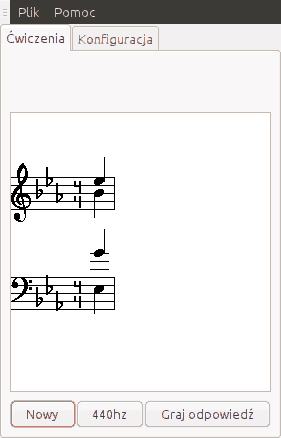
Kiedy dyrygujesz chórem musisz podawać początkowe dźwięki dla wszystkich głosów, a gdy w pobliżu nie ma fortepianu, musisz posłużyć się kamertonem (chyba, że masz słuch absolutny). Jeśli jesteś mężczyzną dźwięki dla głosów żeńskich podajesz o oktawę niżej i odwrotnie.
Program zagra dźwięk A (440 Hz) i wyświetli akord, który musisz zaśpiewać. Solfege na razie nie obsługuje jeszcze mikrofonu, więc musisz samemu ocenić czy odpowiedź była poprawna, czy nie.
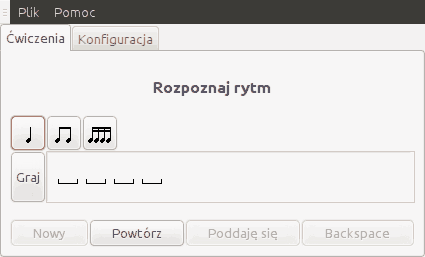
Program gra przypadkowo wygenerowany rytm, a użytkownik powinien go zapisać. Aby tego dokonać, należy klikać na przyciski oznaczone fragmentami różnych rytmów.
When you have entered enough rhythm elements, Solfege will check your answer. If everything is correct it will display a happy face, otherwise a sad face, and all wrong rhythms will be marked.
Jeśli część odpowiedzi jest niepoprawna, wszystkie elementy począwszy od pierwszego błędnego zostaną usunięte (przy zachowaniu poprawnych zapisów na początku odpowiedzi), po kliknięci na smutną buźkę, lub przyciski z rytmami na górze strony.
Aby usłyszeć swoją wersję, użyj przycisku 'Graj'.
Zadania w tym ćwiczeniu obecnie tworzone są przez przypadkowe wybieranie fragmentów rytmów. Nie jest to najlepszy sposób, więc mamy nadzieję że w następnych edycjach programu zmienimy go na coś sprytniejszego.
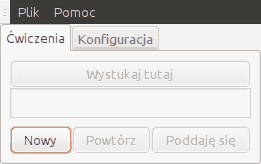
Program gra przypadkowo wygenerowany rytm, a użytkownik powinien go powtórzyć. Rytm wprowadza się stukając w przycisk oznaczony Wystukaj tutaj.
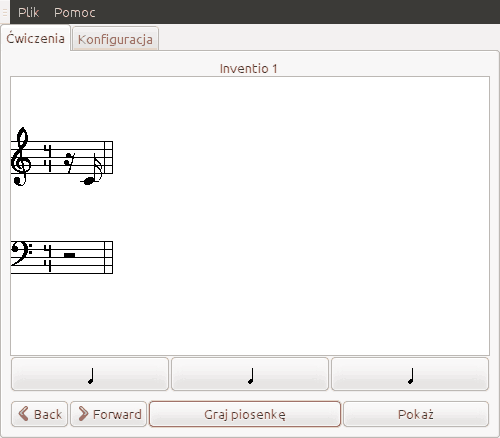
To ćwiczenie zawiera dyktanda, ale może być wykorzystywane na dwa sposoby:
Solfege zagra fragment muzyczny, a Ty masz go zapisać na papierze. Kliknij na przycisk oznaczony ćwierćnutą, aby powtórzyć krótszy fragment muzyki. Żeby sprawdzić czy poprawnie zapisałeś/aś dyktando kliknij na przycisk Pokaż.
Możesz użyć go do ćwiczenia czytania nut głosem: kiedy uruchomisz ćwiczenie, wciśnij przycisk Pokaż, a potem spróbuj zaśpiewać dany fragment. Potem możesz użyć przycisku Graj piosenkę lub przycisku z ćwierćnutą, aby program zagrał dany fragment. Sam musisz zdecydować, czy udało ci się dobrze zaśpiewać.
Scales are a complex matter. For example is the greek lydian (C-D-E-F-G-A-B-C) different from the medieval and modern lydian (C-D-E-F#-G-A-B-C). You can read about all the scales used in GNU Solfege here.
Solfege posiada obecnie trzy warianty ćwieczeń skalowych.
Solfege zagra skalę, a Ty powinieneś/aś ją rozpoznać, klikając na przycisk z nazwą skali.
Solfege zagra skalę, a Ty powinieneś/aś rozpoznać jej budowę. Do wyboru są przyciski oznaczone '1', '2', i '3'. Cyfry te symbolizują interwały, tj. sekunda mała, sekunda wielka i sekunda zwiększona (tercja mała), pomiędzy stopniami skali.
Solfege zagra skalę, a Ty powinieneś/aś rozpoznać stopień. Przykładowo: Solfege wybierze skalę minorową eolską i zagra ją od dowolnego stopnia, a Ty musisz wskazać stopień, od którego zagrana była skala.
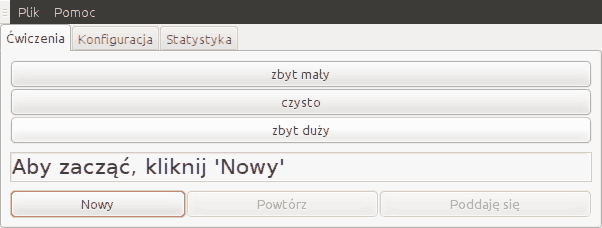
W tym ćwiczeniu Solfege zagra interwał, a Ty musisz określicz jego intonacyjną poprawność. Służą do tego przycisku oznaczone jako: 'zbyt mały', 'czysto', 'zbyt duży'. Możliwe jest również, że brakować będzie jednego z przycisków.
To ćwiczenie łączy w sobie rozwijanie pamięci dźwięków i umiejętności interwałowych. Niektórzy uważają, że ćwiczenia tego typu mogą wyrabiać słuch absolutny.
W skrócie: program gra dźwięk, a Ty musisz go rozpoznać, porównując z ostatnim zagranym dźwiękiem.
Na początku program zagra jeden dźwięk i wyświetli jego nazwę. Rozpoznajesz dźwięki klikając na klawiaturze, lub używając skrótów klawiszowych,tzn. liter, którymi oznaczone są poszczególne klawisze.
Klikając prawym przyciskiem myszy na klawiaturę fortepianu możesz usłyszeć jak brzmi dany dźwięk, bez udzielania odpowiedzi (niektórzy nazywają to oszukiwaniem....)
Solfege have a set of exercises that you can find by clicking “Identify tone” on the front page. You should start with the first exercise, and move to the next each time you can practise from some minutes and still have quite a good score, for example 96% correct.
Możesz skonfigurować to ćwiczenie według swoich potrzeb, wybierając "Zrób to sam" z domyślnej strony głównej.
Istnieje kilka sposobów w jaki można ćwiczyć. Następna sekcja zawiera kilka sugestii.
Start with only the notes c-d-e at weight 1. When your score is at least 96% correct, you add the tone f and continue. Add one new tone until you practise with all 12 tones. Doing this is the same as using the predefined exercises and following the instructions in the start of this chapter.
Ustaw dźwięk 'a' na poziomie 11 (lub wyższym), a resztę dźwięków na poziomie 1. Dzięki temu program będzie grał ten dźwięk bardzo często, tak abyś go zapamiętał i używał jako punktu odniesienia dla rozpoznania innych dźwięków. Kiedy już trochę poćwiczysz możesz zmniejszyć jego poziom tak, aby ćwiczenie było trudniejsze.
Na górze strony Konfiguracji wskazujesz programowi jak ważne są poszczególne dźwięki. Jeśli przykładowo ustawisz dźwięk 'a' na poziomie 11, a wszystkie pozostałe na poziomie 1 to (11+11*1)/11*100 = 50% przypadkowych dźwięków będzie dźwiękiem 'a'.
Poniżej wybierasz w jakiej oktawie mają pojawiać się losowane dźwięki.
Możesz także wybrać, czy Solfege ma zadawać automatycznie nowe pytanie, jeśli rozwiązałeś poprzednie.
W ramce na dole możesz ustalić nie potrzebującą komentarza opcję zdarzenia w wypadku błędnej odpowiedzi.
Skróty klawiszowe mogą być ustawione w Oknie ustawień.
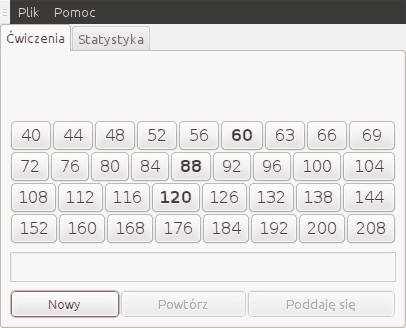
Program będzie nabijał tempo, tak jak metronom. Musisz zgadnąć ilość uderzeń na minutę. Każdy przycisk reprezentuje jedno tempo, a program będzie grał tylko takie tempa, które zaznaczone są na przyciskach pogrubioną czcionką. Aby zmnienić wybór dostępnych temp, kliknij na przycisk prawym przyciskiem myszy.
Uwaga: rytm opiera się na funkcji gtk timeout_add, więc nie jest idealnie precyzyjny.
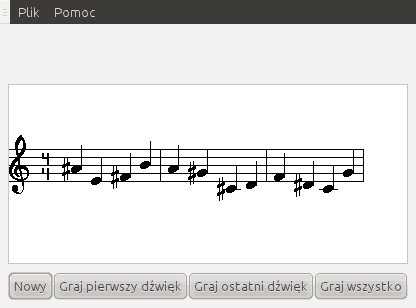
W tym ćwiczeniu program wyświetli wszystkich dwanaście dźwięków w losowej kolejności i zagra pierwszy z nich. Następnie powinieneś zaśpiewać wszystkie nuty i sprawdzić czy ostatnia z nich jest poprawna. Jest to więc bardziej rodzaj egzaminu z czytania nut głosem, niż ćwiczenie do nauki śpiewania interwałów. Jeśli chcesz poćwiczyć to ostatnie powinieneś raczej spróbować innych ćwiczeń.
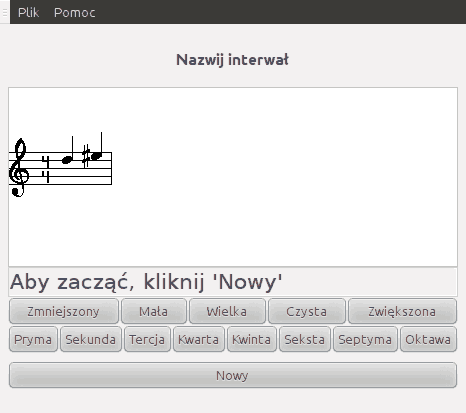
W tym ćwiczeniu Solfege wyświetli i zagra interwał, który musisz nazwać. Jest to ćwiczenie z teorii muzyki, a nie kształcenia słuchu. Aby dowiedzieć się o tym jak rozpoznawać słuchowo interwały przeczytaj „Interwały”.
Interwał wskazujesz klikając na jeden z przycisków określających nazwę oraz drugi wskazujacy rozmiar interwału.
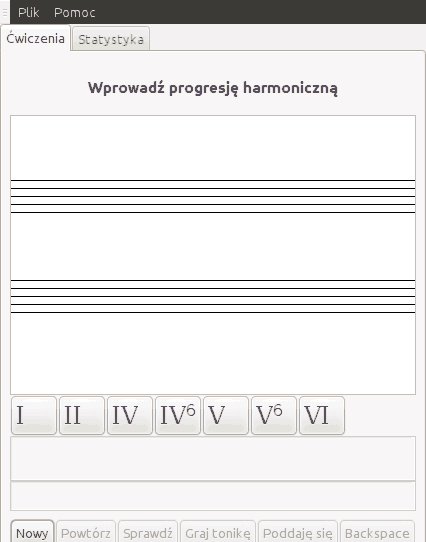
W tym ćwiczeniu Solfege zagra fragment muzyki, a Ty musisz klikać na przyciski, tak aby zapisać progresje harmoniczną, którą usłyszałeś.
David Bonetti dostarczył duży zestaw ćwiczeń skalowych i kilka stron opisujących te skale. Możesz obejrzeć te strony tutaj.
Interwałem w muzyce nazywamy odległość pomiędzy dwoma dźwiękami. Jeśli dźwięki te brzmią równocześnie to mówimy o interwale harmonicznym, a jeśli następują jeden po drugi to mówimy o interwale melodycznym.
Nazwa interwału składa się z dwóch części, np. "tercja wielka", czy "kwinta czysta". Pierwszy człon określa ilość stopni, drugi człon precyzuje rozmiar interwału wskazując dokładną liczbę półtonów. Nazwa "tercja wielka" mówi, że interwał ten ma trzy stopnie (tercja) i cztery półtony (wielka)
Ogólną nazwę interwału określamy licząc stopnie (pola i linie) na pięciolinii, ignorując znaki chromatyczne. Tak więc, jeśli interwał powstaje między dźwiękami e i g#, to znaczy że ma trzy stopnie (e,f, g) i nazywa się tercją.

Rozmiar interwału wskazuje dokładną liczbę półtonów. Unisony, kwarty, kwinty i oktawy mogą być zmniejszone, czyste lub zwiększone. Sekundy, tercje, seksty i septymy mogą być małe, wielkie, zmniejszone, lub zwiększone. Interwał mały jest o jeden półton mniejszy od wielkiego. Interwał zmniejszony jest o jeden półton mniejszy od czystego, lub małego, zaś interwał zwiększony o jeden półton większy od czystego, lub wielkiego.
Rozmiar interwału zmieniają znaki chromatyczne. Interwał zwiększy się o półton, jeśli do górnej nuty dodamy krzyżyk, lub do dolnej nuty dodamy bemol. Interwał zmniejszy się o półton, jeśli do górnej nuty dodamy bemol, lub do dolnej nuty dodamy krzyżyk. Więcej szczegółów o określaniu interwałów znajduje się w nastepnym rozdziale.
Sekundy łatwo rozpoznać, gdyż dwie nuty znajdują się w bezpośrednim sąsiędztwie na pięciolinii. Jedna z nut leży na polu, druga zaś na linii powyżej, lub poniżej. Mała sekunda ma tylko jeden półton (półton to odległość pomiędzy dwoma najbliższymi klawiszami na klawiaturze, lub progami na gitarze). Wielka sekunda ma dwa półtony i nazywana jest całym tonem.
Aby nauczyć się rozpoznawać sekundy, najpierw naucz się jakie sekundy leżą pomiedzy dźwiękami diatonicznymi (tzn. bez znaków chromatycznych). Tak jak to pokazuje Rysunek 3.1, „”, sekundy małe leżą tylko między dźwiękami e-f i h-c. Pozostałe sekundy są wielkie. Możesz sprawdzić to co pokazuje Rysunek 3.1, „”, patrząc na klawiaturę fortepianu. Zobaczysz, że pomiędzy dźwiękami e-f i h-c nie ma czarnych klawiszy.

Jeśli dźwięki tworzące sekundę zawierają znaki chromatyczne, to będziemy musieli sprawdzić w jaki sposób zmieniają one rozmiar interwału. Spróbujmy rozpoznać kilka!

Usuwamy znak chromatyczny Rysunek 3.2, „” i widzimy że odległość f-g to wielka sekunda. Kiedy dodamy bemol do górnego dźwięku interwał ten zmniejszy się o półton, więc otrzymujemy sekundę małą.

Usuwamy znaki chromatyczne i widzimy, że odległość a-h to sekunda wielka. Pamiętamy Rysunek 3.1, „”, prawda? Skoro obydwa dźwięki (zarówno górny i dolny) są obniżone o półton, to rozmiar interwału nie zmienia się: as-b to interwał sekundy wielkiej, tak samo jak a-h.

Usuwamy znaki chromatyczne i widzimy, że odległość e-f to sekunda mała. Kiedy dodamy bemol do dolnej nuty, interwał stanie się o półtonu większy, czyli będzie sekundą wielką. Kiedy zaś dodamy krzyżyk do górnej nuty, interwał znowu zwiększy się o kolejne półtonu, stając się sekundą zwiększoną.
Tercja to odległość trzech stopni. Tercja mała składa się z sekundy małej i sekundy wielkiej, czyli trzech półtonów. Tercja wielka to dwa całe tony, czyli cztery półtony. Rysunek 3.5, „” pokazuje tercje między dźwiękami diatonicznymi. Powinieneś/aś zapamiętać tercje wielkie, c-e, f-a, g-h. Dzięki temu wiesz, że cztery pozotałe tercje są małe (d-f, e-g, a-c, h-d).

Następnie sprawdzasz znaki chromatyczne, aby czy zmieniają one rozmiar interwału. Robi się to dokładnie w taki sam sposób, jak w przypadku sekund.
Kwarta czysta to 2½ stopnia, lub dwie wielkie sekundy i jedna mała. Rysunek 3.6, „” pokazuje wszystkie kwarty pomiędzy dźwiękami diatonicznymi. Powinieneś/aś zapamiętać, że kwarta f-h jest kwartą zwiększoną, a pozostałych sześć to kwarty czyste.

Kwinta czysta to 3½ stopnia lub trzy sekundy wielkie i jedna mała. Rysunek 3.7, „” pokazuje wszystkie kwinty pomiędzy dźwiękami naturalnymi. Powinieneś/aś zapamiętać, że wszystkie te interwały są czyste, za wyjątkiem kwinty h-f, która jest zmniejszona.

Jeśli dźwięki tworzące dany interwał mają znaki chromatyczne, to musimy sprawdzić w jaki sposób zmieniają one rozmiar interwału. Kwinta zmniejszona jest o półton mniejsza od kwinty czystej, a kwinta zwiększona o półton większa. Poniżej znajduje się kilka przykładów:

Pamiętamy Rysunek 3.7, „”, który pokazuje że interwał h-f to kwinta zmniejszona. Rysunek 3.8, „” pokazuje, żę niższy dźwięk jest poprzedzony bemolem, który zwiększa interwał o jeden półton, zmieniając go z kwinty zmniejszonej na kwintę czystą.

Rysunek 3.7, „” pokazuje że interwał e-h jest kwintą czystą. Rysunek 3.9, „” pokazuje, że przed e stoi bemol, który powoduje zwiększenie interwału. Nuta h jest jednak poprzedzona przez podwójny bemol, który zmniejsza interwał o dwa półtony, zamieniając go na kwintę zmniejszoną.
Seksty najłatwiej rozpoznać dzięki przewrotom interwałów i rozpoznawaniu tercji. Robi się to wg następujących reguł:
Jeśli tercja jest zmniejszona, to seksta jest zwiększona
Jeśli tercja jest mała, to seksta jest wielka
Jeśli tercja jest wielka, to seksta jest mała
Jeśli tercja jest zwiększona, to seksta jest zmniejszona
Jeśli przewroty interwałów sprawiają ci kłopot, to możesz zapamiętać, że interwały e-c, a-f i h-g są sekstami małymi. Pozostałe cztery są wielkie. Później sprawdzamy znaki chromatyczne, aby sprawdzić czy zmieniają one rozmiar interwału. Robimy to w taki sam sposób jak w przypadku sekund.

Septymy rozpoznajemy w dokładnie taki sam sposób, jak seksty. Kiedy zrobisz przewrót septymy, uzyskać sekundę.
Jeśli przewroty sprawiają ci kłopot, to możesz zapamiętać że interwały c-h i f-e są wielkie. Pozostałych sześć septym jest małych. Później sprawdzasz znaki chromatyczne, aby sprawdzić czy zmieniają one rozmiar interwału. Robimy to dokładnie tak sama, jak w przypadku sekund.

Przewrót interwału powstaje wtedy, gdy dolny dźwięk przeniesiemy o oktawę wyżej, lub górny dźwięk przeniesiemy o oktawę niżej. Nazwy interwałów zmnieniają się w następujący sposób:
Sekundy dają septymy.
Tercje dają seksty.
Kwarty dają kwinty.
Kwinty dają kwarty.
Seksty dają tercje.
Septymy dają sekundy.
Rozmiary interwałów zmieniają się w następujący sposób:
Zmniejszone dają zwiększone.
Małe dają wielkie.
Czysty daje czysty
Wielkie dają małe.
Zwiększone dają zmniejszone.
Poniżej znajdują się dwa przykłady: przewrót tercji wielkiej daje sekstę małą, a przewrót septymy małej, daje sekundę wielką.

Spis treści
- Introduction
- File locations
- Lesson files
- The
chordvoicingmodule - The
compareintervalsmodule - The
dictationmodule - The
elembuildermodule - The
harmonicintervalmodule - The
idbynamemodule - The
identifybpmmodule - The
idpropertymodule - The
idtonemodule - The
melodicintervalmodule - The
nameintervalmodule - The
rhythmmodule - The
rhythmtappingmodule - The
rhythmtapping2module - The
rhythmdictationmodule - The
rhythmdictation2module - The
singanswermodule - The
singchordmodule - The
singintervalmodule - The
toneincontextmodule - The
twelvetonemodule - Writing your own modules
- The
mpdmodule - Midi instrument names
GNU Solfege is written so that it can easily be extended, even if you do not know any computer programming. The steps are:
Create a lesson file and save it it in the first directory listed when you select from the menu. Create the directory if it does not exist.
Select once again to see the file show up in the list.
Click the link to your lesson file and enjoy!
To get started, you can copy one of the lesson files included in GNU
Solfege. The lesson files are located in the exercises/standard/lesson-files subdirectory of
the installation directory. You can find the installation directory by
selecting from the
menu. It is important to store the lesson files you
create in the directory intended for user created lesson files, and not in the
applications directory. This because all files in the installation directory
may be removed while upgrading the program.
If you create many lesson files, you might want to group them together
in a separate subdirectory and attach them to a front page file. This way you
have a set of files in a subdirectory that you can easily distribute to other students. So create a new directory side by side the user
directory you found by selecting
earlier this article. Your files might be structured like this:
myfiles/myfrontpage.txt
myfiles/lesson-files/chords-1
myfiles/lesson-files/chords-2
To create a new front page file, you should select from the menu, and then click on the toolbar of the dialog that pops up.
In „Introduction” we showed you just enough to place your lesson file to get started. This sections give you all the details how files and directories are set up.
We will write INSTALLDIR
whenever we refer to the directory Solfege is installed in. The exact
location differ from operating system to operating system, and can be
found by selecting → and then lookup «Solfege installation directory».
Example of locations:
MS Windows - C:\Program files\GNU Solfege\share\solfege
GNU/Linux - /usr/share/solfege
Please notice that INSTALLDIR is not necessarily the top directory where
all files belonging to Solfege is installed. Different operating system place
files differently. For the purpose of this document INSTALLDIR is the directory
containing the solfege/ subdirectory containing all the
python modules that composes the program and the
exercises/ subdirectory that contains all the lesson
files.
Solfege allow for the user to create exercises (and soon also
exercise modules written in Python). These should not be saved in
INSTALLDIR because then they will be lost on
upgrade.
The directory to save the lesson files you write yourself depends on the operating system you run, and on the locale settings (language). In this document we will write USERDATA whenever we refer to the directory found if you lookup «Solfege user data» by selecting → . Your files should be saved in directories below USERDATA. Example values for USERDATA:
MS Windows 7 - C:\Users\User name\Documents\GNU Solfege
MS Windows XP - C:\Documents and settings\User name\My Documents\GNU Solfege
GNU/Linux - /home/username/.solfege
Lesson files and front page files are grouped together in
subdirectories below USERDATA/exercises. You can have
as many subdirectories as you like in USERDATA/exercises.
Each file that matches USERDATA/exercises/*/* will be
read by the program and used as a front page file if it has the correct
format. Other files will silently be ignored. This means that you can
have more than one front page file in a subdirectory, and extra files,
like README and COPYRIGHT files are ignored.
Lesson files should be saved in a directory named
lesson-files in the same directory as the front page
file is saved. So if you create some exercises with jazz progressions, you
might have this file structure on your computer:
USERDATA/exercises/jazzprog/page.txt
USERDATA/exercises/jazzprog/lesson-files/prog1
USERDATA/exercises/jazzprog/lesson-files/prog2
USERDATA/exercises/jazzprog/lesson-files/prog3
There is one folder name below USERDATA/exercises
that is special. In addition to what described above, all lesson files
in USERDATA/exercises/user/lesson-files will be
shown when you select on the
menu. This was done to make it simple to just
write a lesson file, drop it in a directory and use it.
Uwaga
In versions prior to 3.20.3, all lesson files matching
USERDATA/exercises/*/lesson-files/* would be listed.
In GNU Solfege, each exercise is created by a lesson file interpreted by one of the exercise modules.
Deprecated modules: chord, harmonicprogressiondictation,
Missing documentation: chordvoicing, identifybpm, twelvetone
Solfege by default expects the content of lesson files to be in UTF-8 encoding. Modern editors often let you specify the encoding in the "Save As" dialog. One example is gedit. Other programs, like vim and emacs let you specify the encoding inside the text file.
If this sounds complicated, you can safely ignore the whole encoding issue if you restrict yourself to use only standard ascii characters. That is only the letters a to z.
If you create lesson files with a different encoding, you have to declare the encoding in a special comment at the top of the file. This because Solfege and the tools used to translate Solfege cannot guess the encoding safely. We follow the same conventions as the Python language. See PEP-0263 for the details.
What you have to do is add a comment to one of the first two lines
of the lesson file, where part of the line matches coding=encoding or coding: encoding. Extra characters on the
line are ignored, so if you use the emacs or vim editors, you can conveniently
tell the editor about the file encoding. The following example sets
the charset to ISO 8859-1, a charset commonly used in many west-european
languages:
# -*- coding: iso-8859-1 -*-
Russians might want to use koi8-r:
# -*- coding: koi8-r -*-
Same as above, but in a format that works with the vim:
# vim: set fileencoding= koi8-r :
The program use the python libs to convert to unicode, so it should understand almost any encoding you can think of. If you see some characters are missing, for example when the name of questions are displayed on buttons, then most likely you have done something wrong with the encoding.
Unicode has some characters that you might want to use to make labels look more professionally. If your editor use unicode by default, you may copy-and-paste the characters you need from here, if you are viewing this documentation in a web browser. The number is a hexidecimal number.
- ø
00F8 LATIN SMALL LETTER O WITH STROKE Half-diminished seventh chord.
- °
00B0 DEGREE SIGN Diminished seventh chord.
- △
25B3 WHITE UP-POINTING TRIANGLE, Δ0394 GREEK CAPITAL LETTER DELTA Major seventh chord. We do not know which character to recommend. Solfege does not care, so you can use the symbol you like.
- ♭
266D MUSIC FLAT SIGN This sign can be used instead of the letter 'b' for a flat sign.
- ♯
266F MUSIC SHARP SIGN This can be used instead of the letter '#' for the sharp sign.
Everything after # on a line is ignored. Example:
# This line is ignored. The next line is not.
question { bla bla }
Strings are quoted with the " character. Example:
"this is a string"
Use triple quotes for strings that contain line breaks, or
if the string itself has to contain the " character:
description = """<h1>Long desription<h1> This lessonfile need
very much descriptions. Qoutes (") are ok here. bla bla bla"""
NB: All strings have to be unicode strings. If you get error messages like this one:
In line 21 of input: does not recognise this string ';lt;' as a valid token.'
(line 20): question {
(line 21): question {
(line 22):   name = _("Ionia�)
then you must check the encoding of your file, and maybe you should read „File encoding”. You can change the encoding of a file using the iconv program:
iconv -f YOUR_ENCODING -t utf8 your.file
Global variables can save you a few key strokes.
s = "\score\relative c'{ %s }
question {
# instead of music = music("\score\relative c'{ c d e f g2 g2 }")
music = music(s % "c d e f g2 g")
}
A lesson file consist of one header block and zero or more question blocks:
header {
 ASSIGNMENT
 ASSIGNMENT
 ...
}
question {
 ASSIGNMENT
 ...
}
The header block can be placed anywhere in the file, but by convention it should be the first block in the file. And there is a limitation that the header has to be within the first 40000 characters of the file.
Variables shared by many exercise modules
-
module Tell what exercise module that will run the lesson file. This variable is required for all lesson files. (The variable was added in Solfege 2.9.0 where it replaced the
contentvariable.). Example:module = idbyname
-
replaces A string or list of strings with hash values of lesson files that this lesson file can replace without dropping the statistics. Use this only when you know what you are doing. The hash value is calculated by
solfege.lessonfile.hash_of_lessonfile(). tools/hash-of-file.py can be used to get the hash value of files before modifying them.replaces = "bf7dd374206451bff43d61fc8191f5fb3e88d007" replaces = "bf7dd374206451bff43d61fc8191f5fb3e88d007", "cdb2f9415171650ee7682028788c1c42c62fdbf"
lesson_idThis variable is deprecated in Solfege 3.15.3. It should remain in existing lesson files because if you remove it, you will have to add a replaces entry to keep the statistics. But it should not be added to new lesson files.
-
version Tell the version of solfege the lessonfile is known to work with. This variable is not required, but it should be used because it can (but don't guarantee to) help avoid trouble if the lesson file format changes in the future. Example:
version = "3.0.7"
-
title Short one-line description that will be used for creating the menu entry for the exercise. You should add this to all lesson files. Example:
title = "Minor and major chords in root position"
-
lesson_heading A short heading that will be displayed above the exercise. It should say what the purpose of the exercise is. Some modules provide a default value, others leave the string empty. Example:
lesson_heading = _("Identify the chord")-
help This variable say which help file from the user manual will be displayed when the user presses F1. Example:
help = "idbyname-intonation"
By default, Solfege will display the help file that has the same name as the exercise module being used in the lesson file.
-
theory This variable say which help file from the user manual will be displayed when the user presses F3. Pressing F3 should display music theory about the exercise. Don't include this variable if there are no music theory written. Example:
theory = "scales/maj"
-
random_transpose In some exercises the program can transpose the music to create variation. The default value is
yes. (The default value changed fromnotoyesin Solfege 3.0.)Used in modules:
chord,chordvoicing,harmonicprogressiondictation,idbyname,singanswer,singchordPossible values
- random_transpose = no
No transposition will be done.
- random_transpose = yes
The exercise will do random transposition. What kind of transposition depends on the exercise, but you get a ok result from this. This is the default value.
- random_transpose = accidentals, INTEGER1, INTEGER2
Transpose the question by random and make sure the key signature of the question does not get more than a certain number of accidentals. In this context, the number of accidentals can be described by an integer value. A negative value denote a number of flats (b), and a positive number denote a number o sharps (#). Zero mean no accidentals. The integers INTEGER1 and INTEGER2 defines a range of allowed number of accidentals.
For this to work properly the music must either be in C major or A minor, or the key of the music has to be set with the
keyvariable.- random_transpose = key, INTEGER1, INTEGER2
Transpose the music INTEGER1 steps down or INTEGER2 steps up the circle of fifth. In this context up is more sharps and down is more flats. This is real transposition where both the key and the notes are transposed.
For this to work properly the music must either be in C major or A minor, or the key of the music has to be set with the
keyvariable.- random_transpose = semitones, INTEGER1, INTEGER2
Transpose the music at most INTEGER1 semitones down or INTEGER2 semitones up. This is real transposition where both the key and the notes are transposed. You will easily end up with music in the keys with LOTS of accidentals.
- random_transpose = atonal, INTEGER1, INTEGER2
Transpose the music at most INTEGER1 semitones down or INTEGER2 semitones up. Similar to
semitones, but the notes will be transposed one by one, and the key will not change.
enable_right_click = noBy default, Solfege will let the user right-click on buttons to hear the music they represent without guessing. Set this variable to
nofor lesson files where it does not make sense, for example in aidbynamelesson file where many questions have the same name.Modules:
idbyname,chordvoicingandchord.-
disable_unused_intervals= no By default, Solfege will make the buttons insensitive for intervals that are not being asked. Set this variable to
noif you want all buttons to be sensitive.Modules:
harmonicintervalandmelodicinterval.ask_for_intervals_0Select which intervals to ask for. 1 for minor second, 2 for major second, 3 or minor third etc. Use a negative number for descending intervals. To ask for more that one interval create the variables
ask_for_intervals_1,ask_for_intervals_2etc. In the following example Solfege will ask for two intervals. The first will be either a minor second or a major second, both intervals going up. And the second interval will be either major second or minor third, both intervals going down.ask_for_intervals_0 = 1, 2 ask_for_intervals_1 = -2, -3Modules:
melodicintervalandsinginterval.intervalsThis variable tell which intervals should be asked for in exercises using the
harmonicintervalmodule. 1 for minor second, 2 for major second, 3 or minor third etc. Example that will practise thirds:intervals = 3, 4
Modules:
harmonicinterval.-
test This variable defines the test for the exercise. In a test, Solfege will ask all the questions in the lesson file a number of times. This variable is always used together with
test_requirement. In the following example, each question will be asked 3 times:test = "3x"
Modules:
harmonicinterval,idbyname,melodicintervalandsinginterval.-
test_requirement This variable defines how large percentage of the questions has to be answered correctly to pass the test. Example:
test_requirement = "90%"
Modules:
harmonicinterval,idbyname,melodicintervalandsinginterval.-
have_repeat_arpeggio_button= yes Set to
yesif you want the exercise to have a "Repeat arpeggio" button.Modules:
singanswer.-
have_music_displayer= yes Set to
yesif you want the question to have a music displayer.In the idbyname module, setting this variable will add a music displayer where the program will display the answer when the user gives up or answers the question correctly. You might also want to read about at_question_start.
In the
singanswermodule, setting this variable will add a music displayer where the music will be displayed when the question is displayed.Modules:
idbyname,elembuilderandsinganswer.-
music_displayer_stafflines= INTEGER The number of empty staff lines to display when we have no music to display.
Modules:
idbynameandelembuilder.-
at_question_start This variable changes what happens when the user clicks . By default, Solfege will play the music when the user clicks , and only display the music when the question is answered correctly and the
have_music_displayervariable is set toyes. Setting this variable will also sethave_music_displayertoyes.at_question_start = showThe exercise will get a button. When the user clicks the music will be displayed in the music displayer, but no music is played. Click to hear the music.
at_question_start = playThe exercise will get a button. When the user clicks the music is played. Click to see the music.
at_question_start = show, playWhen the user clicks the music is both played and displayed.
Modules:
idbyname,elembuilder,rhythmtappingandrhythmtapping2.vmusicThis variable holds a representation of the question intended to be displayed. This can be necessary if the music is a .wav or .mp3 file. It will be used when the user clicks Show music or when the question is answered correctly (if we have a musicdisplayer). Added to
idbynamein Solfege 2.5.1 and toelembuilderin 3.9.2.Modules:
idbynameandelembuilder.rhythm_elementsA list of integers (1-34) telling what elements we should use when creating questions. Example:
rhythm_elements = 0, 1, 2, 3, 4
0:
 ,
1:
,
1: ,
2:
,
2: ,
3:
,
3: ,
4:
,
4: ,
5:
,
5: ,
6:
,
6: ,
7:
,
7: ,
8:
,
8: ,
9:
,
9: ,
10:
,
10: ,
11:
,
11: ,
12:
,
12: ,
13:
,
13: ,
14:
,
14: ,
15:
,
15: ,
16:
,
16: ,
17:
,
17: ,
18:
,
18: ,
19:
,
19: ,
20:
,
20: ,
21:
,
21: ,
22:
,
22: ,
23:
,
23: ,
24:
,
24: ,
25:
,
25: ,
26:
,
26: ,
27:
,
27: ,
28:
,
28: ,
29:
,
29: ,
30:
,
30: ,
31:
,
31: ,
32:
,
32: ,
33:
,
33: ,
34:
,
34:
Modules:
rhythmandrhythmtapping2statistics_matrices = enabled | disabled | hiddenSet to
disabledif the statistics page of the exercise should not display the matrices showing more details on how you have answered. Set tohiddenif the matrices should be hidden by an expander button. (Added in Solfege 3.21.3)Default value:
enabled
Variables you can define in the question block
nameQuestions written for the idbyname or elembuilder exercise modules need a name. A name is optional for dictation module.
musicFor most lesson files the music representing the question is assigned to this variable. Note that there is a shortcut. Instead of:
question {
  name = "Lisa gikk til skolen"
  music = music(...)"
}
you can write:
question {
  name = "Lisa gikk til skolen"
  music(...)
}
Music objects are documented in „
musicobjects”.rhythmIf defined in a question, the rhythm of this music object is used when comparing the users answer to the question. This can be useful if the Solfege cannot find the rhythm of the question, for example when the music object is a MP3 file.
Used in modules:
rhythmtappingandrhythmdictation.tempoSet the tempo for this questions music. The variable is defined "beats per minute" / "notelen per beat". Example:
tempo = 150 / 4
This variable can also be defined globally for the whole lesson file. Do do so you should put it in the beginning of the file, outside any question blocks.
Modules:
idbyname,chord,chordvoicing,rhythmdictation2andrhythmtapping.countinA music object representing a count-in to be played before the question. Only music objects that are parsed by the
mpdmodule can be used as count-in, and only questions parsed by this module can have count-in. Example:tempo = rhythm("\time 4/4 d4 d d d")Entering the time signature is not necessary if the time signature is 4/4, but for all other time signatures you must include it.
Modules:
rhythmdictationandrhythmdicatation2instrumentBy default, Solfege will use the instrument specified on the preferences window when playing questions. This variable let you select a different instrument. Example:
instrument = "cello", 100
The instrument name has to be quoted. The integer is the volume, and it should be in the range 0-127. You can see a list of instrument names in „Midi instrument names”. For lesson files where it makes sense, it is possible to specify three set of instruments. The following example will play bass for the lowest tone, piano in the middle and clarinet on the top tone:
instrument = "bass", 100, "acoustic grand", 100, "clarinet", 100
This variable can also be defined globally for the whole lesson file. Do do so you should put it in the beginning of the file, outside any question blocks.
Modules:
idbyname,chord,singanswerandchordvoicingsetThe set variable is used by some exercise modules to select which question to play when the user right clicks on one of the answer buttons. This can be useful if the lesson file has many questions with the same name, and you want solfege to play the question that is most closely related to the question being asked. You can assign whatever value you want. A good suggestion is to use integers.
In lesson files that does not use the
setvariable, solfege will play the first question it can find with the same name as the button the user right clicks on.If the lesson file uses the
set, or more precisely, if the question being asked has the variable defined, the program will first try to find a question where thesetvariable matches the question being asked, and the name matches the button clicked. If no match is found, the program will select a question to play as if thesetvariable was not used at all.Modules:
idbynameandchordvoicing.keyNeeded to make some random transposition work properly if the music is not in C major on A minor. Two examples:
key="b \minor"
key="g \major"
The import statement will parse a library file and bind it to a
name in the global namespace. You then refer to names defined in the
libarary file using dot notation. In the example below, the
files jazz_progressions and progression_elements are two library files that are part of GNU Solfege and
is located in the INSTALLDIR/exercises/standard/lib/ directory.
import progression_elements
import jazz_progressions as j
question {
  elements = progression_elements.I, progression_elements.V
}
question {
  elements = j.I, j.V, j.V
}
Parse the file and bind it to the same name as the file name:
| |
Parse the |
The program will first search for a library file in
INSTALLDIR/exercises/standard/lib/ and if not found,
in the ../lib/ relative to the location of the
lesson file.
The rimport statement work exactly the same
way as import except that ../lib/
relative to the lesson file is searched before
INSTALLDIR/exercises/standard/lib/.
Include and import works a little differently. One thing is that how they
find the file to parse differs. But also what happens with the file content. If
one idbyname lesson file includes another
idbyname lesson file, when the questions from the included
file will be asked when you practise the including file. But if you copy the
included file to ../lib/ and import it,
the questions in the imported file will not be asked. Only the global
variables in the imported file will be available with dot-notation, as
described in „The import statement”.
Each question in your lesson files will define one or more
music objects.
- music(musiccode)
This is music entered completely following the music format FIXME spec. This means you have to enter complete code with a
\staffcommand. Example:variable = music("\staff\relative c' { c' d' }")- music3(musiccode)
The music object can be used for music that has 3 or more staffs. It works the same way as music, but if "Use different instruments for chords and harmonic intervals" is checked in the preferences window, the 3 instruments you can select the same place will be used instead of the preferred MIDI instrument.
- chord(musiccode)
Enter the tones from the lowest to the highest tone, like this:
variable = chord("c' e' g'")- satb(musiccode)
This type of music is used by the singchord exercises. It let you say which tones of a chord the different voices in a choir will sing. Take this, for example:
variable = satb("c''|e'|g|c")The
c''will be sung by the soprano,e'by the alto,gby the tenor andcby the bass. Please notice that when this music is played in arpeggio, the tones to be sung by the women, will be played one octave deeper, of the user is a male. And vice versa if the user is a female or a child.- voice(musiccode)
This musictype saves some key strokes if you want to enter a melody.
variable = voice("c'4 c' g' g' | a' a' g'2")is the same as
variable = music("\staff{ c'4 c' g' g' | a' a' g'2")- rvoice(musiccode)
rvoiceis similar tovoiceexcept that the music is in\relativemode, relative to the first tone. The following two statements produce the same music:variable = rvoice("c'4 c g' g | a a g2") \staff\relative c'{ c4 c g' g' | a a g2 }- percussion(percussioncode)
This music object provides a simple way to play rhythms with percussion instruments. Each tone represents a percussion instrument as defined in „Percussion instrument names”. In the following example, the tone c is translated to the midi sound Side Stick and d to a Mute triangle.
variable = percussion("d4 d d d c8 c8 c4")- rhythm(musiccode)
This music object let you write questions that tap rhythms with the two percussion instruments defined in the preferences window. The tone
cwill play with the instrument intended for the question anddwill use the instrument intended for count off. Example:rhythm("d4 d d d c8 c8 c4 c c8 c8")You should only use two pitches,
candd. Other pitches will print a warning, but will still work in the current implementation. To play real percussion with many different instruments you should use the percussion music object.- midifile(filename)
Play a midi file. The path given to the file is relative to the directory the lesson file is stored in. Example:
variable = midifile("share/example.mid")- wavfile(filename)
Play a
.wavfile. The path given to the file is relative to the directory the lesson file is stored in. Example:variable = wavfile("share/fifth-small-220.00.wav")- mp3file(filename)
Play a MP3 file. Similar to
wavfile.- oggfile(filename)
Play an Ogg Vorbis file. Similar to
wavfile.- csound(orchestra, score)
Given a CSound orchestra and score, this music object will generate a WAV file and play it. Example:
csound(load("share/sinus.orc"), """ f1 0 4096 10 1 i1 0 1 220.0 i1 + 1 329.04 """)- mma(mmacode), mma(groove, mmacode)
Create a music object that use MMA to generate music that it will play. If you create the object with one argument, mmacode should be a string with complete MMA code. With two arguments,
grooveis a string with the name of the groove, andmmacodeis comple MMA code, except it could be missing the initial "Groove" instruction. The groove fromgroovewill be prepended the string.- cmdline(shell code)
Run an external program. Example:
cmdline("./bin/csound-play-harmonic-interval.sh 220.000000 320.100000")
_(message)Return the translation of
messageif it exist. Return the string unchanged if not.title = _("Bla bla title")include(filename)Read the file
filenameinto the lesson file and parse it as a part of the file. The program will first search for the file with the filename relative to the location of the lesson file. If not found, it will search theexercises/standard/lesson-filesdirectory of the installation directory of the program.include("singchord-1")The lesson header variables will be taken from the including lesson file. Only if a variable is only defined in the included lesson file, and not in the including lesson file, then the value will be taken from the included file.
load(filename)Read the file
filenamefrom disk and return it as a string. The filename is relative to the location of the lesson file.orc = load("share/sinus.orc")
Label functions
We call these functions label functions because we use them to create the label for some questions in the program. You should only use these functions where they are documented to work.
Return a label that the program can put on a button. The label is created using GTK pangomarkup. Google for "pango markup" to get the markup explained. Notice that you have to use triple qoutes around the string.
pangomarkup("""<span size="xx-large">V</span>""")This function has existed in Solfege for a while, but it has not been documented until now. Should we find a shorter function name? An alias can be added so that the old long function name still works.
Return a label.
stris interpreted like this:Each letter outside of a parentheses is displayed with a large serif font.
The text inside parentheses is displayed as a superscript: smaller letters above the baseline.
If the text inside the parentheses is divided by a comma, the text before the comma is superscript and after the comma is subscript.
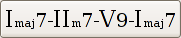
progressionlabel("I-IV-(6,4)V(5,3)-I") progressionlabel("I-VI-V(6)-I")" progressionlabel("C(maj7)")Display a sequence of roman numeral chords. The chords are separated by whitespace and an optional hyphen. The exact implementation of this is still open for discussion. The current developent version of Solfege will divide each chord in 3 parts and give them different font sizes, and also try to make the chord compact, so that it should not take too much space on screen.
The first part of the chord is the roman numberal, including an optional
b,♭(unicode characterU+266D MUSIC FLAT SIGN),#or♯(unicode characterU+266F MUSIC SHARP SIGN).The second part is the letters (if any) between the first and the third part.
The third part is from the first digit and the rest of the chord.
rnc("Imaj7-IIm7-V9-Imaj7")Spaces are not allowed in the chord name.
New in version 3.11.0.
Display a sequence of chords. The chords are separated by whitespace. Each chord consist of up to four parts, and part two to four are optional:
[notename][txt1][:txt2][/bass]
notenameandbassmusic be a notename in the format understood by the music parser. You can read more about this in „Thempdmodule”. Example:g:11b9 cm/g ges:Δ besm:7/f
New in version 3.11.1.


Here is a minimal lesson file:
header {
    countin_perc = compareintervals
    title = "Compare intervals"
}
This file will make an exercise that ask you to compare harmonic intervals. And since you do not say which intervals, it will ask for all intervals from a small second up to a major tenth.
first_interval_type,second_interval_typeLet you select if the intervals you are asked to compare should be a melodic or a harmonic interval. The default value is
melodic. Possible values:harmonicandmelodic.first_interval_type = melodic second_interval_type = harmonicModules:
compareintervals.first_interval,last_intervalSelect which intervals to select from when creating the questions. This variable should be defined the same way as ask_for_intervals_0. If these two variables are not defined, then the user will be able to select which intervals to practise from the Config page of the exercise.
Modules:
compareintervals.
Example:
header {
  module = dictation
  title = _("Norwegian children songs")
  version = "2.1.10"
}
question {
 name = "Bæ, bæ, lille lam"
 tempo = 130/4
 breakpoints = 2/1, 4/1, 8/1, 10/1, 12/1, 14/1
 music = rvoice("""
    \time 4/4
    c'2 g' | e4 e c2 | d4 d g, g | c1 |
    c2 g' | e4 e c2 | d4 d g, g | c1 |
    a'4 f f f | g2. e4 | f d d d | e2. c4 |
    a'2 f | g e4 e | f b, b b | c1 |
 """)
}
question {
 # this tempo definition overrides the global
 tempo = 160/4
 name = "Lisa gikk til skolen"
 breakpoints = 2/1, 4/1, 6/1
 music = rvoice("""
   \time 4/4
   c' d e f | g2 g2 | a4 a a a | g1 |
   f4 f f f | e2 e | d4 d d d | c1
 """)
}
question {
 name = "Det satt to katter på et bord..."
 tempo = 96/4
 music = rvoice("""
     \key g \major \time 2/4
     d'8 | [g g] [fis e] | [fis g] a4 | [d,16 d d d] [e8 fis] | g2 """)
}
By default, the dictation exercise will show the first column of music, and then the user should write the rest. But if the first column is not good enough, for example if there are only rests on the first beat, these two variables can tell the program how much music to display:
clue_endThe following example will display the music on all staffs in the first quarter note:
clue_end=1/4
clue_musicThis is an alternative to
clue_end. The music assigned toclue_musicwill be shown to the user when he should start the dictation. You should not use bothclue_endandclue_musicin the same question.breakpointsSet breakpoints in the music, so you can hear the music in parts when doing the dictation.
Here is a minimal lesson file:
element progI { label = "I" }
element progIV { label = "IV" }
element progV { label = "V" }
header {
    module = elembuilder
    title = "progression test"
    elements = auto
    # uncomment if you want a music displayer.
    # have_music_displayer = yes
}
question {
 music = rvoice("<c' e g> <b d g> <c e g>")
 elements = progI, progV, progI
 name = "I-V-I"
}
question {
 music = rvoice("<c' e g> <c f a> <c e g>")
 elements = progI, progIV, progI
 name = "I-IV-I"
}
This block defines the elements the user can put together to answer the
question. Each block is named by the string between element
and {. The block defines one variable,
label that is the label the button will get.
labellabelcan either be a plain string or one of the label functions.sortIf defined, the value of
sortwill be used to sort the elements when displaying the buttons. If not defined, the elements will be sorted by their name.
elementsThis variable defines which elements to display. Set this to
autoto display all elements that are needed to answer the questions in the lesson file. You can display more elements that needed to make it more difficult for the user. An example:elements = progI, progIV, progV, progIV, progV_6
music_displayer_stafflinesSet this if you want the music displayer to show more than one empty staff line when the music displayer have no music to display.
See also at_question_start and music_displayer_stafflines.
elementsThis variable defines which elements defines the question. It can be elements, as defined in the example above, or strings or labels defined by the label functions.
tonicThe exercise will have a "Play tonic" button if this variable is defined in a question in the lesson file. The variable should contain some music to play to the user so that he knows the tonic of the question. This can be useful in harmonic progressions that does not start on the tonic. This variable is optional. Example:
tonic = chord("c e g")nameThe name is needed for storing statistics. A string or a label created by the label functions.
See also vmusic.
User documentation is in „Interwały harmoniczne”.
Here is a minimal lesson file:
header {
  module = harmonicinterval
  version = "3.1.4"
  title = "Seconds"
  intervals = 1, 2
  test = "3x"
  test_requirement = "90%"
}
Additional variables you can put in the header. Click on the link to get an explanation:
This is a very generic exercise. In its most basic form, the program will play some sound, and you have to select among several buttons that in some way represents the music.
Here is a minimal lesson file:
header {
  module = idbyname
  version = "3.1.4"
  title = "Menuitem title"
}
question {
 name = "Major"
 music = chord("c' e' g'")
}
question {
 name = "Minor"
 music = chord("c' es' g'")
}
Optional idbyname header variables
filldir = verticTell the direction the buttons are filled. Default value is
horiz.Modules:
idbyname.fillnumTell how many buttons there are in each row or column. The default value is 1.
Modules:
idbyname.labelformat= progressionThe default value is
normal. Set toprogressionfor lesson files where the name of the questions is a harmonic progression, written in a undocumented, but not difficult format. Check some existing lesson file to see how it works.Ostrzeżenie
Using this variable is deprecated. Do not use it for new lesson files.
Modules:
idbyname-
have_repeat_slowly_button= yes Set to
yesif you want the exercise to have a "Repeat slowly" button.Modules:
idbyname.
See also at_question_start and music_displayer_stafflines.
Required question variables
name. Can be a string or a label created by the label functions.
Optional question variables
vmusicSee vmusic.
cuemusicWill be displayed in the music displayer when the user clicks New. Ignored if
at_question_start = play, showorat_question_start = show, because then the content ofmusicorvmusicis displayed when the user clicks New. (Added in Solfege 2.5.1)
The idproperty module let you create exercises where
solfege will play some music and you have to identify different properties
of the music.
Below is a minimal lesson file. It will create an exercise that will play a minor or major chord and the user answers with two buttons labeled "Minor" and "Major" and two buttons representing the inversion. Notice that unused properties, toptone in this example, are hidden.
header {
    module = idproperty
    flavour = "chord"
    title = "Minor and major chords"
}
question {
  name = "Major"
  music = chord("c' e' g'")
  inversion = 0
}
question {
  name = "Minor"
  music = chord("es' g' c''")
  inversion = 1
}
flavour = "chord" will add the following definitions
to the lesson file header, unless if they are missing:
  new_button_label = _("_New chord")
  lesson_heading = _("Identify the chord")
  qprops = "name", "inversion", "toptone"
  qprop_labels = _("Name"), _("Inversion"), _("Toptone")
new_button_label is the label to put on the
button. The default value is
_("New").
lesson_heading will set the heading to be displayed
when you practise. The default value is an empty string, that will hide the
heading.
The properties are defined by the props variable in
the lesson file header, and there should be a variable
prop_labels that defines the label to use.
props and prop_labels must be lists of
equal length.
The exercise will have a button
if one or more of the questions can be played arpeggiated. Set the lesson file
header variable have_repeat_arpeggio_button to no to disable hide the button.
If the exercise have a inversion property, it will be
treated special. If assigned integer values, like in the example, the integer values will be replaced with strings. So 0 is replaced with "root position", 1 with "1. inversion" etc.
Here is a minimal lesson file:
header {
    module = idtone
    title = "Id tone 3"
    black_keys_weight =  0, 0,    0, 0, 0
    white_keys_weight = 1, 1, 1, 0, 0, 0, 0
}
The 'weight' of a tone tell how big chance is it that the program will select this tone as the next to identify. Think of the weight of a tone as the number of lottery tickets with the name of the tone.
The variable black_keys_weight set the weight of the
tones c#, d#, f#, g# and a#, and white_keys_weight will set
the weight of the tones c, d, e, f, g, a, b. In the example above, the tones c,
d and e get an equal weight of 1, the other tones 0. This mean that the only
tones that will be asked for are c, d and e, and that the three tones share the
same probability to be selected.
User documentation is in „Interwały melodyczne”.
Here is a minimal lesson file:
header {
  module = melodicinterval
  version = "3.1.4"
  title = "Seconds and thirds"
  ask_for_intervals_0 = 1, 2, 3, 4, -1, -2, -3, -4
  test = "3x"
  test_requirement = "90%"
}
Additional variables you can put in the header. Click on the link to get an explanation:
Tests are only partially implemented for the
melodicinterval exercise module: tests where each question
is made by more than one interval does not work yet.
Here is a minimal lesson file:
header {
    module = nameinterval
    title = _("Fifths")
    intervals = p5, a5, d5
}
intervalsA list of the intervals to ask for. The intervals are written in a short form, a letter and a number, like
d5orm7. The letters are telling the interval quality are 'd' for diminished, 'a' for augmented, 'm' for minor, 'M' for major and 'p' for perfect.tonesThis variable sets the range of tones that can be used when constructing the intervals. The note names has to be quoted. The default value is
"b", "g''". Example:tones = "c'", "f''" # valid tones = c', f'' # not valid
accidentalsThis variable defines how many accidentals the tones making the interval can have. The value 0 means no accidentals, 1 means that flats and sharps are allowed, and 2 means that double flats and double sharps are allowed. The default value is 1. Example:
accidentals = 2
clefSet which clef to use. The default value is
violin. Possible values:violin,treble,subbass,bass,baritone,varbaritone,tenor,alto,mezzosopranoandfrench. Example:clef = bass
A simple rhythm exercise. Solfege will randomly generate rhythm patterns that the user should recreate by clicking on buttons.
Here is a minimal lesson file:
header {
  module = rhythm
  version = "3.1.4"
  title = "Easy rhythms"
  rhythm_elements = 1, 2, 3, 4
}
visible_rhythm_elementsDefine this variable if you want more rhythm elements that the one to be asked for. This variable must include both the rhythm elements defined in
rhythm_elementsand the extra elements. Example:rhythm_elements = 0, 1, 2, 3, 4, 5, 6
countin_percAn integer value between 35 and 81, representing the percussion instrument used to give you the beat before the question. The default value is 80. Example:
countin_perc = 35
35 Acoustic Bass Drum 51 Ride Cymbal 1   67 High Agoga
36 Bass Drum          52 Chinece Cymbal  68 Agogo Low
37 Side Stick         53 Ride Bell       69 Cabasa
38 Acoustic Snare     54 Tambourine      70 Maracas
39 Hand Clap          55 Splash Cymbal   71 Short Whistle
40 Electric Snare     56 Cowbell         72 Long Whistle
41 Low Floor Tom      57 Crash cymbal 2  73 Short Guiro
42 Closed Hi Hat      58 Vibraslap       74 Long Guiro
43 High Floor Tom     59 Ride Cymbal 2   75 Claves
44 Pedal Hi Hat       60 Hi Bongo        76 Hi Wood Block
45 Low Tom            61 Low Bongo       77 Low Wood Block
46 Open HiHat         62 Mute Hi Conga   78 Mute Cuica
47 Low-Mid Tom        63 Open High Conga 79 Open Cuica
48 Hi-Mid Tom         64 Low Conga       80 Mute Triangle
49 Crash Cymbal 1     65 High Timbale    81 Open Triangle
50 High Tom           66 Low Timbale
Modules:
rhythmrhythm_percSame as countin_perc, but setting the instrument used to play the question. The default value is 37.
Modules:
rhythmcount_inThe number of beats as count in. The default value is 2.
Modules:
rhythmbpmThe tempo, in beats per minute. The default value is 60.
Modules:
rhythmnum_beatsThe number of elements the question is made of. The default value is 4.
Modules:
rhythm
Exercises using this module will play some music and then the user should tap the rhythm. The program will then say if the users rhythm is similar enough to the rhythm played by the computer.
Here is a minimal lesson file:
header {
  module = rhythmtapping
  version = "3.7.0"
  title = "Rhythm tapping test"
}
question {
 music = rhythm("c4 c8 c8")
}
question {
 music = music("\staff\relative c'{c4 d8 e f4}\addvoice\relative c'{c4 b8 c a4}")
 rhythm = rhythm("c4 c8 c c4")
}
The first question in the example is very simple and self explaining.
Solfege will play the rhythm defined in the music variable,
and the user should tap that rhythm.
The second question is a little more complicated. Here Solfege will play
the music defined in the music variable. And when the user
taps the rhythm, Solfege will compare the users rhythm with the rhythm defined
in the rhythm variable. The reason for using two variables
is that Solfege is not smart enough to figure out the rhythm if you enter
polyphonic music. It make no difference if you set the
rhythm variable to be a rhythm music
object, or another single voice type like rvoice. This might
change in the future. You as a lesson file author must make sure the rhythms in
the two variables are in fact the same.
See also at_question_start.
Solfege will play a generated rhythm, and the user should tap the same rhythm.
Here is a minimal lesson file:
header {
  module = rhythmtapping2
  version = "3.7.0"
  title = "Rhythm tapping test"
  rhythm_elements = 1, 2, 3, 4
}
See also at_question_start.
Solfege will play some music, and the user should enter the rhythm of the music in the rhythm editor. Below is a small lesson file example.
header {
  module = rhythmdictation2
  title = "Rhythm dictation"
}
# Tempo for all questions
tempo = 150/4
# Used for all questions that does not set the countin music themselves
countin = rhythm("c4 c  c c")
question {
  # Tempo set here overrides the global tempo
  tempo = 150/4
  music = rvoice("d'4 d8 e fis8 fis4.")
}
question {
  music = mp3file("musicfile.mp3")
  rhythm = rvoice("c4 c4 c8 c8 c4")
}
Solfege will play a generated rhythm, and then the user should enter the rhythm in the rhythm editor. Below is a minimal lesson file. You can have as many question blocks as you like. When the program generates a random question, it will first select one question block by random, and then use it to generate the actual question.
header {
  module = rhythmdictation2
  title = "Rhythm dictation"
}
# Tempo for all questions that does not specify it.
tempo = 150/4
# Countin for all questions that does not specify it
countin = rhythm("d4 d d d")
question {
  bars = 4/4, 3/4, 4/4
  elements = "4", "8 8"
  # Tempo set here overrides the global tempo
  tempo = 150/4
}
question {
  bars = 3/4, 3/4
  countin = rhythm("d4 d d")
  elements = "4", "8 8"
}
Here is a minimal lesson file:
header {
  module = singanswer
  version = "3.1.4"
  title = "Sing the root of the chord"
}
question {
    question_text = "Sing the root"
    music = chord("c' e' g'")
    answer = chord("c'")
}
question {
    question_text = "Sing the root"
    music = chord("a' c'' e''")
    answer = chord("a'")
}
Additional variables you can put in the header. Click on the link to get an explanation:
Questions for this exercise need to have the key variable set if the key signature is anything else than ''c'' major (or ''a'' minor). Example:
header {
  module = singchord
  version = "3.1.4"
  title = "Simple chords"
}
question { music = satb("c''|e'|g|c") }
question { music = satb("a'|e'|c'|a") }
question { key="d \major" music = satb("a'|fis'|d'|d") }
question { key="f \minor" music = satb("as'|f'|c'|f") }
See also „Śpiewaj akord”.
This is an exercise where the program display an interval and play the first tone. Then the user should sing the interval, and then click a button to hear the correct answer. There is no microphone support yet.
User documentation is in „Zaśpiewaj ten interwał”.
Here is a minimal lesson file:
header {
  module = singinterval
  version = "3.1.4"
  title = "Thirds"
  ask_for_intervals_0 = 3, 4
  test = "3x"
  test_requirement = "90%"
}
Ostrzeżenie
This module is still begin worked on. The lesson file format will most likely change in the next releases. Right now the music in the cadences must be a string with complete mpd code. Using music objects will not work now.
Here is a minimal lesson file:
header {
  module = toneincontext
  version = "3.21.0"
  title = "First 4 scale tones"
  tones = 3, 4
}
cadence {
  music = "\staff\relative g'{ <g e c> <a f c> <g f d b> <g e c> }"
}
The cadence block should be in C major. The program will select cadence by random if you write more than one cadence block.
If you don't define the tones variable, the program will let you select tones in the config page of the exercise.
Ostrzeżenie
Experimental feature. Will most likely change in the next stable branch because we need a failsafe way for exercise module to include other files like graphcis etc.
You can write your own exercise modules in Python and place them in the
modules/ directory parallell to the
lesson-files/ directory containing the
lesson file. So the lesson file
USERDATA/exercises/user/lesson-files/demofile will search
for exercise modules in USERDATA/exercises/user/modules/.
A module below USERDATA can have the
same name as one of the standard modules. The module below USERDATA will be
used when the lesson file is stored in the lesson-files/ directory parallell to the modules/ directory. But the standard lessonfiles
stored in INSTALLDIR and in other
directories willuse the standard module included with Solfege.
The module is not documented yet. The input format is similar to the one used by GNU Lilypond, but only the simplest construct works.
Quick note: Notenames understood by the program are c, d, e, f, g, a, b, with 'is', 'isis', 'es', or 'eses' added. For example 'fis', 'bes', 'gisis'.
         acoustic grand          contrabass      lead 7 (fifths)
        bright acoustic     tremolo strings   lead 8 (bass+lead)
         electric grand   pizzicato strings      pad 1 (new age)
             honky-tonk  orchestral strings         pad 2 (warm)
       electric piano 1             timpani    pad 3 (polysynth)
       electric piano 2   string ensemble 1        pad 4 (choir)
            harpsichord   string ensemble 2        pad 5 (bowed)
                   clav      synthstrings 1     pad 6 (metallic)
                celesta      synthstrings 2         pad 7 (halo)
           glockenspiel          choir aahs        pad 8 (sweep)
              music box          voice oohs          fx 1 (rain)
             vibraphone         synth voice    fx 2 (soundtrack)
                marimba       orchestra hit       fx 3 (crystal)
              xylophone             trumpet    fx 4 (atmosphere)
          tubular bells            trombone    fx 5 (brightness)
               dulcimer                tuba       fx 6 (goblins)
          drawbar organ       muted trumpet        fx 7 (echoes)
       percussive organ         french horn        fx 8 (sci-fi)
             rock organ       brass section                sitar
           church organ        synthbrass 1                banjo
             reed organ        synthbrass 2             shamisen
              accordion         soprano sax                 koto
              harmonica            alto sax              kalimba
             concertina           tenor sax              bagpipe
acoustic guitar (nylon)        baritone sax               fiddle
acoustic guitar (steel)                oboe               shanai
 electric guitar (jazz)        english horn          tinkle bell
electric guitar (clean)             bassoon                agogo
electric guitar (muted)            clarinet          steel drums
      overdriven guitar             piccolo            woodblock
       distorted guitar               flute           taiko drum
       guitar harmonics            recorder          melodic tom
          acoustic bass           pan flute           synth drum
 electric bass (finger)        blown bottle       reverse cymbal
   electric bass (pick)          skakuhachi    guitar fret noise
          fretless bass             whistle         breath noise
            slap bass 1             ocarina             seashore
            slap bass 2     lead 1 (square)           bird tweet
           synth bass 1   lead 2 (sawtooth)       telephone ring
           synth bass 2   lead 3 (calliope)           helicopter
                 violin      lead 4 (chiff)             applause
                  viola    lead 5 (charang)              gunshot
                  cello      lead 6 (voice)
The first column is the integer value for the instrument. The second column tell the name of the note you should enter in the rhythm music object.
35 b,,   Acoustic Bass Drum   59 b     Ride Cymbal 2
36 c,    Bass Drum 1          60 c'    Hi Bongo
37 cis,  Side Stick           61 cis'  Low Bongo
38 d,    Acoustic Snare       62 d'    Mute Hi Conga
39 dis,  Hand Clap            63 dis'  Open High Conga
40 e,    Electric Snare       64 e'    Low Conga
41 f,    Low Floor Tom        65 f'    High Timbale
42 fis,  Closed Hi Hat        66 fis'  Low Timbale
43 g,    High Floor Tom       67 g'    High Agogo
44 gis,  Pedal Hi Hat         68 gis'  Agogo Low
45 a,    Low Tom              69 a'    Cabasa
46 ais,  Open HiHat           70 ais'  Maracas
47 b,    Low-Mid Tom          71 b'    Short Whistle
48 c     Hi-Mid Tom           72 c''   Long Whistle
49 cis   Crash Cymbal 1       73 cis'' Short Guiro
50 d     High Tom             74 d''   Long Guiro
51 dis   Ride Cymbal 1        75 dis'' Claves
52 e     Chinese Cymbal       76 e''   Hi Wood Block
53 f     Ride Bell            77 f''   Low Wood Block
54 fis   Tambourine           78 fis'' Mute Cuica
55 g     Splash Cymbal        79 g''   Open Cuica
56 gis   Cowbell              80 gis'' Mute Triangle
57 a     Crash Cymbal 2       81 a''   Open Triangle
58 ais   Vibraslap
Version 3, 29 June 2007
Copyright © 2007 Free Software Foundation, Inc. http://fsf.org/
Everyone is permitted to copy and distribute verbatim copies of this license document, but changing it is not allowed.
Preamble
The GNU General Public License is a free, copyleft license for software and other kinds of works.
The licenses for most software and other practical works are designed to take away your freedom to share and change the works. By contrast, the GNU General Public License is intended to guarantee your freedom to share and change all versions of a program—to make sure it remains free software for all its users. We, the Free Software Foundation, use the GNU General Public License for most of our software; it applies also to any other work released this way by its authors. You can apply it to your programs, too.
When we speak of free software, we are referring to freedom, not price. Our General Public Licenses are designed to make sure that you have the freedom to distribute copies of free software (and charge for them if you wish), that you receive source code or can get it if you want it, that you can change the software or use pieces of it in new free programs, and that you know you can do these things.
To protect your rights, we need to prevent others from denying you these rights or asking you to surrender the rights. Therefore, you have certain responsibilities if you distribute copies of the software, or if you modify it: responsibilities to respect the freedom of others.
For example, if you distribute copies of such a program, whether gratis or for a fee, you must pass on to the recipients the same freedoms that you received. You must make sure that they, too, receive or can get the source code. And you must show them these terms so they know their rights.
Developers that use the GNU GPL protect your rights with two steps: (1) assert copyright on the software, and (2) offer you this License giving you legal permission to copy, distribute and/or modify it.
For the developers’ and authors’ protection, the GPL clearly explains that there is no warranty for this free software. For both users’ and authors’ sake, the GPL requires that modified versions be marked as changed, so that their problems will not be attributed erroneously to authors of previous versions.
Some devices are designed to deny users access to install or run modified versions of the software inside them, although the manufacturer can do so. This is fundamentally incompatible with the aim of protecting users’ freedom to change the software. The systematic pattern of such abuse occurs in the area of products for individuals to use, which is precisely where it is most unacceptable. Therefore, we have designed this version of the GPL to prohibit the practice for those products. If such problems arise substantially in other domains, we stand ready to extend this provision to those domains in future versions of the GPL, as needed to protect the freedom of users.
Finally, every program is threatened constantly by software patents. States should not allow patents to restrict development and use of software on general-purpose computers, but in those that do, we wish to avoid the special danger that patents applied to a free program could make it effectively proprietary. To prevent this, the GPL assures that patents cannot be used to render the program non-free.
The precise terms and conditions for copying, distribution and modification follow.
TERMS AND CONDITIONS
0. Definitions.
“This License” refers to version 3 of the GNU General Public License.
“Copyright” also means copyright-like laws that apply to other kinds of works, such as semiconductor masks.
“The Program” refers to any copyrightable work licensed under this License. Each licensee is addressed as “you”. “Licensees” and “recipients” may be individuals or organizations.
To “modify” a work means to copy from or adapt all or part of the work in a fashion requiring copyright permission, other than the making of an exact copy. The resulting work is called a “modified version” of the earlier work or a work “based on” the earlier work.
A “covered work” means either the unmodified Program or a work based on the Program.
To “propagate” a work means to do anything with it that, without permission, would make you directly or secondarily liable for infringement under applicable copyright law, except executing it on a computer or modifying a private copy. Propagation includes copying, distribution (with or without modification), making available to the public, and in some countries other activities as well.
To “convey” a work means any kind of propagation that enables other parties to make or receive copies. Mere interaction with a user through a computer network, with no transfer of a copy, is not conveying.
An interactive user interface displays “Appropriate Legal Notices” to the extent that it includes a convenient and prominently visible feature that (1) displays an appropriate copyright notice, and (2) tells the user that there is no warranty for the work (except to the extent that warranties are provided), that licensees may convey the work under this License, and how to view a copy of this License. If the interface presents a list of user commands or options, such as a menu, a prominent item in the list meets this criterion.
1. Source Code.
The “source code” for a work means the preferred form of the work for making modifications to it. “Object code” means any non-source form of a work.
A “Standard Interface” means an interface that either is an official standard defined by a recognized standards body, or, in the case of interfaces specified for a particular programming language, one that is widely used among developers working in that language.
The “System Libraries” of an executable work include anything, other than the work as a whole, that (a) is included in the normal form of packaging a Major Component, but which is not part of that Major Component, and (b) serves only to enable use of the work with that Major Component, or to implement a Standard Interface for which an implementation is available to the public in source code form. A “Major Component”, in this context, means a major essential component (kernel, window system, and so on) of the specific operating system (if any) on which the executable work runs, or a compiler used to produce the work, or an object code interpreter used to run it.
The “Corresponding Source” for a work in object code form means all the source code needed to generate, install, and (for an executable work) run the object code and to modify the work, including scripts to control those activities. However, it does not include the work’s System Libraries, or general-purpose tools or generally available free programs which are used unmodified in performing those activities but which are not part of the work. For example, Corresponding Source includes interface definition files associated with source files for the work, and the source code for shared libraries and dynamically linked subprograms that the work is specifically designed to require, such as by intimate data communication or control flow between those subprograms and other parts of the work.
The Corresponding Source need not include anything that users can regenerate automatically from other parts of the Corresponding Source.
The Corresponding Source for a work in source code form is that same work.
2. Basic Permissions.
All rights granted under this License are granted for the term of copyright on the Program, and are irrevocable provided the stated conditions are met. This License explicitly affirms your unlimited permission to run the unmodified Program. The output from running a covered work is covered by this License only if the output, given its content, constitutes a covered work. This License acknowledges your rights of fair use or other equivalent, as provided by copyright law.
You may make, run and propagate covered works that you do not convey, without conditions so long as your license otherwise remains in force. You may convey covered works to others for the sole purpose of having them make modifications exclusively for you, or provide you with facilities for running those works, provided that you comply with the terms of this License in conveying all material for which you do not control copyright. Those thus making or running the covered works for you must do so exclusively on your behalf, under your direction and control, on terms that prohibit them from making any copies of your copyrighted material outside their relationship with you.
Conveying under any other circumstances is permitted solely under the conditions stated below. Sublicensing is not allowed; section 10 makes it unnecessary.
3. Protecting Users’ Legal Rights From Anti-Circumvention Law.
No covered work shall be deemed part of an effective technological measure under any applicable law fulfilling obligations under article 11 of the WIPO copyright treaty adopted on 20 December 1996, or similar laws prohibiting or restricting circumvention of such measures.
When you convey a covered work, you waive any legal power to forbid circumvention of technological measures to the extent such circumvention is effected by exercising rights under this License with respect to the covered work, and you disclaim any intention to limit operation or modification of the work as a means of enforcing, against the work’s users, your or third parties’ legal rights to forbid circumvention of technological measures.
4. Conveying Verbatim Copies.
You may convey verbatim copies of the Program’s source code as you receive it, in any medium, provided that you conspicuously and appropriately publish on each copy an appropriate copyright notice; keep intact all notices stating that this License and any non-permissive terms added in accord with section 7 apply to the code; keep intact all notices of the absence of any warranty; and give all recipients a copy of this License along with the Program.
You may charge any price or no price for each copy that you convey, and you may offer support or warranty protection for a fee.
5. Conveying Modified Source Versions.
You may convey a work based on the Program, or the modifications to produce it from the Program, in the form of source code under the terms of section 4, provided that you also meet all of these conditions:
The work must carry prominent notices stating that you modified it, and giving a relevant date.
The work must carry prominent notices stating that it is released under this License and any conditions added under section 7. This requirement modifies the requirement in section 4 to “keep intact all notices”.
You must license the entire work, as a whole, under this License to anyone who comes into possession of a copy. This License will therefore apply, along with any applicable section 7 additional terms, to the whole of the work, and all its parts, regardless of how they are packaged. This License gives no permission to license the work in any other way, but it does not invalidate such permission if you have separately received it.
If the work has interactive user interfaces, each must display Appropriate Legal Notices; however, if the Program has interactive interfaces that do not display Appropriate Legal Notices, your work need not make them do so.
A compilation of a covered work with other separate and independent works, which are not by their nature extensions of the covered work, and which are not combined with it such as to form a larger program, in or on a volume of a storage or distribution medium, is called an “aggregate” if the compilation and its resulting copyright are not used to limit the access or legal rights of the compilation’s users beyond what the individual works permit. Inclusion of a covered work in an aggregate does not cause this License to apply to the other parts of the aggregate.
6. Conveying Non-Source Forms.
You may convey a covered work in object code form under the terms of sections 4 and 5, provided that you also convey the machine-readable Corresponding Source under the terms of this License, in one of these ways:
Convey the object code in, or embodied in, a physical product (including a physical distribution medium), accompanied by the Corresponding Source fixed on a durable physical medium customarily used for software interchange.
Convey the object code in, or embodied in, a physical product (including a physical distribution medium), accompanied by a written offer, valid for at least three years and valid for as long as you offer spare parts or customer support for that product model, to give anyone who possesses the object code either (1) a copy of the Corresponding Source for all the software in the product that is covered by this License, on a durable physical medium customarily used for software interchange, for a price no more than your reasonable cost of physically performing this conveying of source, or (2) access to copy the Corresponding Source from a network server at no charge.
Convey individual copies of the object code with a copy of the written offer to provide the Corresponding Source. This alternative is allowed only occasionally and noncommercially, and only if you received the object code with such an offer, in accord with subsection 6b.
Convey the object code by offering access from a designated place (gratis or for a charge), and offer equivalent access to the Corresponding Source in the same way through the same place at no further charge. You need not require recipients to copy the Corresponding Source along with the object code. If the place to copy the object code is a network server, the Corresponding Source may be on a different server (operated by you or a third party) that supports equivalent copying facilities, provided you maintain clear directions next to the object code saying where to find the Corresponding Source. Regardless of what server hosts the Corresponding Source, you remain obligated to ensure that it is available for as long as needed to satisfy these requirements.
Convey the object code using peer-to-peer transmission, provided you inform other peers where the object code and Corresponding Source of the work are being offered to the general public at no charge under subsection 6d.
A separable portion of the object code, whose source code is excluded from the Corresponding Source as a System Library, need not be included in conveying the object code work.
A “User Product” is either (1) a “consumer product”, which means any tangible personal property which is normally used for personal, family, or household purposes, or (2) anything designed or sold for incorporation into a dwelling. In determining whether a product is a consumer product, doubtful cases shall be resolved in favor of coverage. For a particular product received by a particular user, “normally used” refers to a typical or common use of that class of product, regardless of the status of the particular user or of the way in which the particular user actually uses, or expects or is expected to use, the product. A product is a consumer product regardless of whether the product has substantial commercial, industrial or non-consumer uses, unless such uses represent the only significant mode of use of the product.
“Installation Information” for a User Product means any methods, procedures, authorization keys, or other information required to install and execute modified versions of a covered work in that User Product from a modified version of its Corresponding Source. The information must suffice to ensure that the continued functioning of the modified object code is in no case prevented or interfered with solely because modification has been made.
If you convey an object code work under this section in, or with, or specifically for use in, a User Product, and the conveying occurs as part of a transaction in which the right of possession and use of the User Product is transferred to the recipient in perpetuity or for a fixed term (regardless of how the transaction is characterized), the Corresponding Source conveyed under this section must be accompanied by the Installation Information. But this requirement does not apply if neither you nor any third party retains the ability to install modified object code on the User Product (for example, the work has been installed in ROM).
The requirement to provide Installation Information does not include a requirement to continue to provide support service, warranty, or updates for a work that has been modified or installed by the recipient, or for the User Product in which it has been modified or installed. Access to a network may be denied when the modification itself materially and adversely affects the operation of the network or violates the rules and protocols for communication across the network.
Corresponding Source conveyed, and Installation Information provided, in accord with this section must be in a format that is publicly documented (and with an implementation available to the public in source code form), and must require no special password or key for unpacking, reading or copying.
7. Additional Terms.
“Additional permissions” are terms that supplement the terms of this License by making exceptions from one or more of its conditions. Additional permissions that are applicable to the entire Program shall be treated as though they were included in this License, to the extent that they are valid under applicable law. If additional permissions apply only to part of the Program, that part may be used separately under those permissions, but the entire Program remains governed by this License without regard to the additional permissions.
When you convey a copy of a covered work, you may at your option remove any additional permissions from that copy, or from any part of it. (Additional permissions may be written to require their own removal in certain cases when you modify the work.) You may place additional permissions on material, added by you to a covered work, for which you have or can give appropriate copyright permission.
Notwithstanding any other provision of this License, for material you add to a covered work, you may (if authorized by the copyright holders of that material) supplement the terms of this License with terms:
Disclaiming warranty or limiting liability differently from the terms of sections 15 and 16 of this License; or
Requiring preservation of specified reasonable legal notices or author attributions in that material or in the Appropriate Legal Notices displayed by works containing it; or
Prohibiting misrepresentation of the origin of that material, or requiring that modified versions of such material be marked in reasonable ways as different from the original version; or
Limiting the use for publicity purposes of names of licensors or authors of the material; or
Declining to grant rights under trademark law for use of some trade names, trademarks, or service marks; or
Requiring indemnification of licensors and authors of that material by anyone who conveys the material (or modified versions of it) with contractual assumptions of liability to the recipient, for any liability that these contractual assumptions directly impose on those licensors and authors.
All other non-permissive additional terms are considered “further restrictions” within the meaning of section 10. If the Program as you received it, or any part of it, contains a notice stating that it is governed by this License along with a term that is a further restriction, you may remove that term. If a license document contains a further restriction but permits relicensing or conveying under this License, you may add to a covered work material governed by the terms of that license document, provided that the further restriction does not survive such relicensing or conveying.
If you add terms to a covered work in accord with this section, you must place, in the relevant source files, a statement of the additional terms that apply to those files, or a notice indicating where to find the applicable terms.
Additional terms, permissive or non-permissive, may be stated in the form of a separately written license, or stated as exceptions; the above requirements apply either way.
8. Termination.
You may not propagate or modify a covered work except as expressly provided under this License. Any attempt otherwise to propagate or modify it is void, and will automatically terminate your rights under this License (including any patent licenses granted under the third paragraph of section 11).
However, if you cease all violation of this License, then your license from a particular copyright holder is reinstated (a) provisionally, unless and until the copyright holder explicitly and finally terminates your license, and (b) permanently, if the copyright holder fails to notify you of the violation by some reasonable means prior to 60 days after the cessation.
Moreover, your license from a particular copyright holder is reinstated permanently if the copyright holder notifies you of the violation by some reasonable means, this is the first time you have received notice of violation of this License (for any work) from that copyright holder, and you cure the violation prior to 30 days after your receipt of the notice.
Termination of your rights under this section does not terminate the licenses of parties who have received copies or rights from you under this License. If your rights have been terminated and not permanently reinstated, you do not qualify to receive new licenses for the same material under section 10.
9. Acceptance Not Required for Having Copies.
You are not required to accept this License in order to receive or run a copy of the Program. Ancillary propagation of a covered work occurring solely as a consequence of using peer-to-peer transmission to receive a copy likewise does not require acceptance. However, nothing other than this License grants you permission to propagate or modify any covered work. These actions infringe copyright if you do not accept this License. Therefore, by modifying or propagating a covered work, you indicate your acceptance of this License to do so.
10. Automatic Licensing of Downstream Recipients.
Each time you convey a covered work, the recipient automatically receives a license from the original licensors, to run, modify and propagate that work, subject to this License. You are not responsible for enforcing compliance by third parties with this License.
An “entity transaction” is a transaction transferring control of an organization, or substantially all assets of one, or subdividing an organization, or merging organizations. If propagation of a covered work results from an entity transaction, each party to that transaction who receives a copy of the work also receives whatever licenses to the work the party’s predecessor in interest had or could give under the previous paragraph, plus a right to possession of the Corresponding Source of the work from the predecessor in interest, if the predecessor has it or can get it with reasonable efforts.
You may not impose any further restrictions on the exercise of the rights granted or affirmed under this License. For example, you may not impose a license fee, royalty, or other charge for exercise of rights granted under this License, and you may not initiate litigation (including a cross-claim or counterclaim in a lawsuit) alleging that any patent claim is infringed by making, using, selling, offering for sale, or importing the Program or any portion of it.
11. Patents.
A “contributor” is a copyright holder who authorizes use under this License of the Program or a work on which the Program is based. The work thus licensed is called the contributor’s “contributor version”.
A contributor’s “essential patent claims” are all patent claims owned or controlled by the contributor, whether already acquired or hereafter acquired, that would be infringed by some manner, permitted by this License, of making, using, or selling its contributor version, but do not include claims that would be infringed only as a consequence of further modification of the contributor version. For purposes of this definition, “control” includes the right to grant patent sublicenses in a manner consistent with the requirements of this License.
Each contributor grants you a non-exclusive, worldwide, royalty-free patent license under the contributor’s essential patent claims, to make, use, sell, offer for sale, import and otherwise run, modify and propagate the contents of its contributor version.
In the following three paragraphs, a “patent license” is any express agreement or commitment, however denominated, not to enforce a patent (such as an express permission to practice a patent or covenant not to sue for patent infringement). To “grant” such a patent license to a party means to make such an agreement or commitment not to enforce a patent against the party.
If you convey a covered work, knowingly relying on a patent license, and the Corresponding Source of the work is not available for anyone to copy, free of charge and under the terms of this License, through a publicly available network server or other readily accessible means, then you must either (1) cause the Corresponding Source to be so available, or (2) arrange to deprive yourself of the benefit of the patent license for this particular work, or (3) arrange, in a manner consistent with the requirements of this License, to extend the patent license to downstream recipients. “Knowingly relying” means you have actual knowledge that, but for the patent license, your conveying the covered work in a country, or your recipient’s use of the covered work in a country, would infringe one or more identifiable patents in that country that you have reason to believe are valid.
If, pursuant to or in connection with a single transaction or arrangement, you convey, or propagate by procuring conveyance of, a covered work, and grant a patent license to some of the parties receiving the covered work authorizing them to use, propagate, modify or convey a specific copy of the covered work, then the patent license you grant is automatically extended to all recipients of the covered work and works based on it.
A patent license is “discriminatory” if it does not include within the scope of its coverage, prohibits the exercise of, or is conditioned on the non-exercise of one or more of the rights that are specifically granted under this License. You may not convey a covered work if you are a party to an arrangement with a third party that is in the business of distributing software, under which you make payment to the third party based on the extent of your activity of conveying the work, and under which the third party grants, to any of the parties who would receive the covered work from you, a discriminatory patent license (a) in connection with copies of the covered work conveyed by you (or copies made from those copies), or (b) primarily for and in connection with specific products or compilations that contain the covered work, unless you entered into that arrangement, or that patent license was granted, prior to 28 March 2007.
Nothing in this License shall be construed as excluding or limiting any implied license or other defenses to infringement that may otherwise be available to you under applicable patent law.
12. No Surrender of Others’ Freedom.
If conditions are imposed on you (whether by court order, agreement or otherwise) that contradict the conditions of this License, they do not excuse you from the conditions of this License. If you cannot convey a covered work so as to satisfy simultaneously your obligations under this License and any other pertinent obligations, then as a consequence you may not convey it at all. For example, if you agree to terms that obligate you to collect a royalty for further conveying from those to whom you convey the Program, the only way you could satisfy both those terms and this License would be to refrain entirely from conveying the Program.
13. Use with the GNU Affero General Public License.
Notwithstanding any other provision of this License, you have permission to link or combine any covered work with a work licensed under version 3 of the GNU Affero General Public License into a single combined work, and to convey the resulting work. The terms of this License will continue to apply to the part which is the covered work, but the special requirements of the GNU Affero General Public License, section 13, concerning interaction through a network will apply to the combination as such.
14. Revised Versions of this License.
The Free Software Foundation may publish revised and/or new versions of the GNU General Public License from time to time. Such new versions will be similar in spirit to the present version, but may differ in detail to address new problems or concerns.
Each version is given a distinguishing version number. If the Program specifies that a certain numbered version of the GNU General Public License “or any later version” applies to it, you have the option of following the terms and conditions either of that numbered version or of any later version published by the Free Software Foundation. If the Program does not specify a version number of the GNU General Public License, you may choose any version ever published by the Free Software Foundation.
If the Program specifies that a proxy can decide which future versions of the GNU General Public License can be used, that proxy’s public statement of acceptance of a version permanently authorizes you to choose that version for the Program.
Later license versions may give you additional or different permissions. However, no additional obligations are imposed on any author or copyright holder as a result of your choosing to follow a later version.
15. Disclaimer of Warranty.
THERE IS NO WARRANTY FOR THE PROGRAM, TO THE EXTENT PERMITTED BY APPLICABLE LAW. EXCEPT WHEN OTHERWISE STATED IN WRITING THE COPYRIGHT HOLDERS AND/OR OTHER PARTIES PROVIDE THE PROGRAM “AS IS” WITHOUT WARRANTY OF ANY KIND, EITHER EXPRESSED OR IMPLIED, INCLUDING, BUT NOT LIMITED TO, THE IMPLIED WARRANTIES OF MERCHANTABILITY AND FITNESS FOR A PARTICULAR PURPOSE. THE ENTIRE RISK AS TO THE QUALITY AND PERFORMANCE OF THE PROGRAM IS WITH YOU. SHOULD THE PROGRAM PROVE DEFECTIVE, YOU ASSUME THE COST OF ALL NECESSARY SERVICING, REPAIR OR CORRECTION.
16. Limitation of Liability.
IN NO EVENT UNLESS REQUIRED BY APPLICABLE LAW OR AGREED TO IN WRITING WILL ANY COPYRIGHT HOLDER, OR ANY OTHER PARTY WHO MODIFIES AND/OR CONVEYS THE PROGRAM AS PERMITTED ABOVE, BE LIABLE TO YOU FOR DAMAGES, INCLUDING ANY GENERAL, SPECIAL, INCIDENTAL OR CONSEQUENTIAL DAMAGES ARISING OUT OF THE USE OR INABILITY TO USE THE PROGRAM (INCLUDING BUT NOT LIMITED TO LOSS OF DATA OR DATA BEING RENDERED INACCURATE OR LOSSES SUSTAINED BY YOU OR THIRD PARTIES OR A FAILURE OF THE PROGRAM TO OPERATE WITH ANY OTHER PROGRAMS), EVEN IF SUCH HOLDER OR OTHER PARTY HAS BEEN ADVISED OF THE POSSIBILITY OF SUCH DAMAGES.
17. Interpretation of Sections 15 and 16.
If the disclaimer of warranty and limitation of liability provided above cannot be given local legal effect according to their terms, reviewing courts shall apply local law that most closely approximates an absolute waiver of all civil liability in connection with the Program, unless a warranty or assumption of liability accompanies a copy of the Program in return for a fee.
END OF TERMS AND CONDITIONS
How to Apply These Terms to Your New Programs
If you develop a new program, and you want it to be of the greatest possible use to the public, the best way to achieve this is to make it free software which everyone can redistribute and change under these terms.
To do so, attach the following notices to the program. It is safest to attach them to the start of each source file to most effectively state the exclusion of warranty; and each file should have at least the “copyright” line and a pointer to where the full notice is found.
one line to give the program’s name and a brief idea of what it does.Copyright (C)yearname of authorThis program is free software: you can redistribute it and/or modify it under the terms of the GNU General Public License as published by the Free Software Foundation, either version 3 of the License, or (at your option) any later version. This program is distributed in the hope that it will be useful, but WITHOUT ANY WARRANTY; without even the implied warranty of MERCHANTABILITY or FITNESS FOR A PARTICULAR PURPOSE. See the GNU General Public License for more details. You should have received a copy of the GNU General Public License along with this program. If not, see http://www.gnu.org/licenses/.
Also add information on how to contact you by electronic and paper mail.
If the program does terminal interaction, make it output a short notice like this when it starts in an interactive mode:
programCopyright (C)yearname of authorThis program comes with ABSOLUTELY NO WARRANTY; for details type ‘show w’. This is free software, and you are welcome to redistribute it under certain conditions; type ‘show c’ for details.
The hypothetical commands ‘show w’ and
‘show c’ should show the appropriate parts of
the General Public License. Of course, your program’s commands might be
different; for a GUI interface, you would use an “about box”.
You should also get your employer (if you work as a programmer) or school, if any, to sign a “copyright disclaimer” for the program, if necessary. For more information on this, and how to apply and follow the GNU GPL, see http://www.gnu.org/licenses/.
The GNU General Public License does not permit incorporating your program into proprietary programs. If your program is a subroutine library, you may consider it more useful to permit linking proprietary applications with the library. If this is what you want to do, use the GNU Lesser General Public License instead of this License. But first, please read http://www.gnu.org/philosophy/why-not-lgpl.html.